Every alt text website builder field does the same job: it gives an image a short written description that screen readers read aloud, browsers show when the image fails to load and search engines use to understand the page. Wix, Squarespace and Framer each put that field in a different place, and some images on each platform take their alt text from another field unless you change it.
This guide follows the current help documentation from Wix, Squarespace and Framer, plus the W3C’s guidance on writing text alternatives. It was checked on 4 November 2026.
Decide what each image needs first
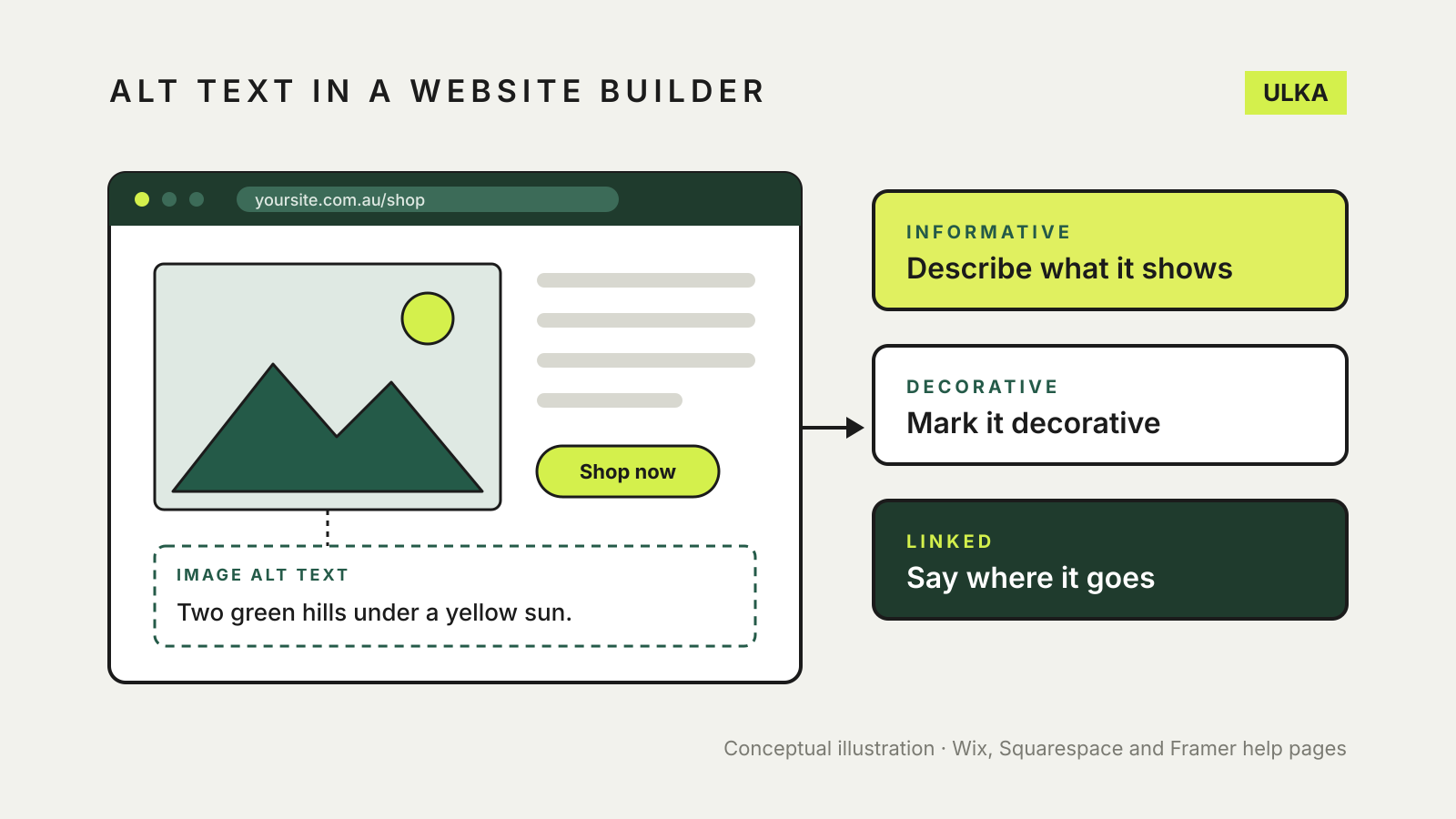
Before typing anything, sort your images into three groups. The W3C’s alt decision tree is the clearest reference for this.
- Informative images add meaning to the page: a product photo, a staff portrait, a map of your shopfront. Give them a brief description of what matters in the image.
- Decorative images are there for appearance only: a background texture, a divider, a stock photo that repeats nothing the text needs. They should have empty alt text so screen readers skip them.
- Functional images sit inside a link or button. Their alt text should say what the link does or where it goes, such as “Book an appointment”, not what the picture looks like.
An image of text, such as a poster or a logo with words in it, needs those words in its alt text unless the same words already appear as real text nearby.
Write alt text that helps
All three builders give similar advice. Describe the image as you would to someone who cannot see it, keep it short and leave out “image of” or “picture of”, because screen readers already announce that it is an image. Squarespace suggests around 150 to 200 characters as an upper range. Wix asks you not to reuse the same alt text for two images on one page. Framer suggests ending the description with a full stop.
Keywords can appear where they fit naturally, but the description comes first. “Navy linen shirt, back view” helps a visitor. A string of search terms does not, and Framer warns that keyword stuffing can be penalised.
Avoid file names such as IMG_2041.jpg as alt text. Wix’s SEO checklist calls this out directly, and Squarespace uses the file name as a fallback in many places, so rename files before uploading.
Wix: image settings and the Accessibility Wizard
In the Wix editor, click the image, select the Settings icon and type a description under What’s in the image?, then press Enter. The same panel exists in the Wix Editor, Studio Editor and Wix Harmony Editor.
Gallery images work differently. Wix uses each image’s title as alt text by default. To change it, click the gallery, choose Manage Media or Change Images, select an image and edit the title, or for Wix Pro Gallery, the separate Alt Text field. Wix’s Pro Gallery SEO page says that without a title, the description is used instead.
To find images you missed, open Settings > Accessibility Wizard and run Scan Site. The wizard lists images without alt text and lets you mark purely decorative images as decorative. It can also generate suggestions, but Wix says it cannot guarantee their accuracy and that the generator does not support SVG or GIF files. Read every suggestion before applying it.
Publish the site afterwards. Wix notes that alt text only goes live once the site is published.
Squarespace: know which field becomes alt text
Squarespace’s alt text guide, updated on 1 October 2026, is clear that image blocks and auto layouts have no alt text until you add it.
For an image block, edit the page, click the block, select the pencil icon, open the Content tab and fill in Image alt text. It saves automatically. Auto layout sections have the same field for each image under Edit Content > Content.
Many other images borrow text from elsewhere:
| Image type | Where Squarespace takes alt text from |
|---|---|
| Blog post featured image | Post title |
| Gallery block image | Image title, or description if there is no title |
| Gallery section image | Image description |
| Page featured image | File name |
| Product image | Alt text field (up to 200 characters), otherwise product name |
| Site logo | Site title |
Section background images and custom video thumbnails cannot take alt text at all. Keep anything important out of background images for that reason.
Framer: the Fill panel and the CMS
On the Framer canvas, select the image, click Fill in the Styles panel and enter the description in the pop-up. For images stored in the CMS, open the CMS item and use Choose Image to add alt text. Images placed inside a formatted text field get their own pop-up when you click them.
Framer’s accessibility guide also places alt text for image frames in the accessibility panel. Publish the site so the change appears on the live domain.
Check the live site
A field in an editor is not proof that the published page carries the text. Check a few pages once the site is live.
- Open a page in a desktop browser, right-click an image and choose Inspect. The
imgelement should show analtattribute with your text. Decorative images should showalt="". - Run your builder’s own scan again: the Wix Accessibility Wizard or SEO Setup Checklist, or Squarespace’s SEO tools.
- Turn on a screen reader, such as VoiceOver on a Mac or iPhone or Narrator on Windows, and move through one page. Listen for images announced only by a file name.
- Look at gallery and product pages specifically. These are where titles, descriptions and product names quietly stand in for alt text.
When you move pages or rename them, keep the alt text with the image. Our guide to website builder 301 redirects covers the other half of a tidy migration, and once the site is checked you can add it to Google Search Console.