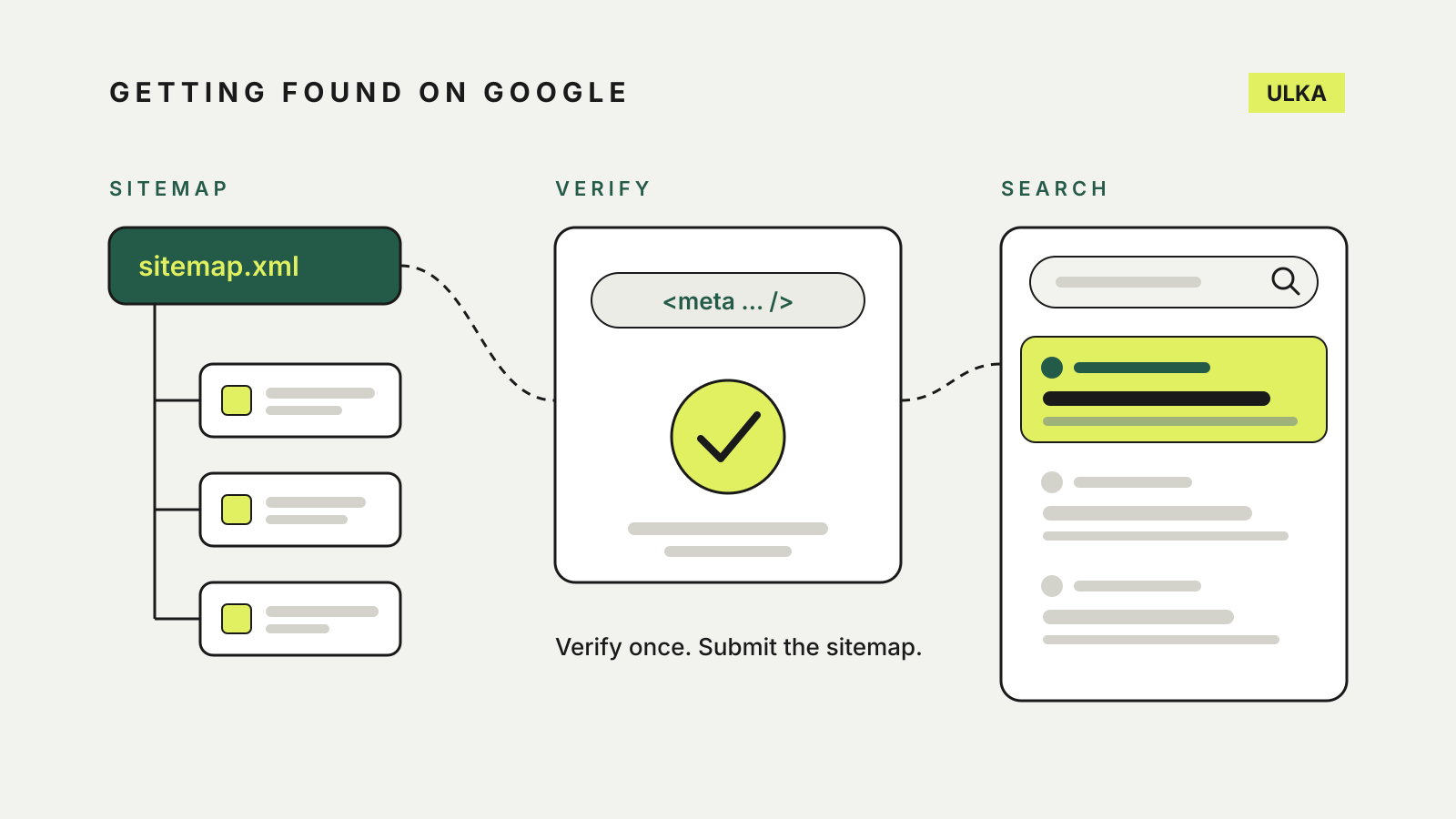
To add a website to Google Search Console from a website builder, you prove to Google that the site is yours, then point it at the sitemap the builder already makes. Wix, Squarespace, Hostinger and Framer each handle the proof a little differently, and a couple of them block the method Google suggests first. Getting that step right saves most of the frustration.
This guide follows the help pages published by Google, Wix, Squarespace, Hostinger and Framer, checked on 19 October 2026. Builder menus are renamed from time to time, so follow the labels in your own dashboard if they differ.
What Search Console does, and what it doesn’t
Search Console is Google’s free tool for seeing how your site appears in Google Search: which pages are indexed, which searches show them and which errors stop a page being crawled. Google says that adding a property does not change how your site appears in search; it only lets you track it. Data starts to collect as soon as the property is added, even before you verify it, but Google says it takes a few days to build up.
It is also not a switch that puts a site on Google. Hosted platforms usually submit new content automatically, and Google says requesting a crawl does not guarantee a page will appear in results, instantly or at all. What Search Console gives you is a view of the problem when a page does not show up.
Before you start
Check three things on the builder side first. Each of these stops verification on at least one platform:
- Publish the site and use your own domain. Wix says you need an upgraded site and a connected domain. Squarespace says verification won’t work on trial sites, because they are hidden from search engines.
- Remove the password. Both Wix and Squarespace say a password-protected homepage cannot be crawled or verified.
- Let search engines index the site. On Wix, check that Let search engines index your site is on in SEO Settings.
If you have just connected a domain bought elsewhere, Squarespace recommends waiting 48 hours before verifying. Our guide to connecting a custom domain covers the DNS records involved.
Domain or URL prefix?
Google offers two kinds of website property:
| Domain property | URL-prefix property | |
|---|---|---|
| What it covers | Every subdomain and protocol (www, non-www, http, https) | Only addresses that start with the exact prefix you enter |
| How you verify | A DNS record only | Several methods, including an HTML meta tag |
| What you enter | example.com.au | https://www.example.com.au |
A Domain property gives the most complete picture, but it needs access to your domain’s DNS settings. A URL-prefix property is quicker on a builder because most of them let you paste Google’s meta tag into the site. If you choose URL prefix, enter the address exactly as visitors see it, including https:// and any www. You can hold up to 1,000 properties in one Search Console account.
Verifying on each builder
Wix. Create a URL-prefix property with your full address, expand HTML tag and copy the meta tag. In the Wix dashboard, open SEO & GEO, scroll to Tools and settings, select Site Verification, expand Google Search Console, paste the tag and save. Then return to Search Console and click Verify. Wix also offers a connection through its SEO Setup Checklist; if you verify manually, you can ignore that checklist step.
Squarespace. Squarespace connects through its own Search keywords panel: open Analytics, click Search keywords, click Connect, sign in to the right Google account and click Allow. Keyword data can take up to 72 hours to appear. If you verify in Search Console directly instead, note that Squarespace does not support the method that uploads a file to your site; it suggests adding a TXT record to your DNS settings.
Hostinger. Hostinger’s instructions use a Domain property. Copy the verification code Google shows, then add a TXT record in your domain’s DNS zone with the name @ and Google’s code as the value, leaving the TTL at its default. If Google cannot find the record straight away, it has not finished propagating; wait and click Verify again.
Framer. Framer says you can’t upload an HTML file to a Framer site, so use the meta tag. Choose a URL-prefix property, copy the tag, then in your site’s General settings paste it at the end of the custom code for the <head>, save and publish the site again before clicking Verify.
Whichever method you use, leave it in place. Google checks verification periodically; if the tag or DNS record disappears, for example after a template change, you lose access after a grace period. Google lets you add a second verification method as a backup.
Submit the sitemap
Squarespace, Hostinger’s builder and Framer all generate an XML sitemap automatically, and Hostinger says its sitemap updates each time you change the site. On Hostinger and Framer it sits at your domain followed by /sitemap.xml. Hostinger adds that the sitemap address should include www only if the www prefix is enabled in your website’s settings.
In Search Console, select the property, open Sitemaps, enter the sitemap address and click Submit. Google describes a sitemap as an important way to discover the pages on a site, particularly one that has just launched or moved.
Check a page and ask for a recrawl
For a single new or changed page, paste its address into the URL Inspection tool at the top of Search Console. It shows whether the page can be indexed and when Google last crawled it, and lets an owner request indexing. Google warns that there is a quota on these requests and that asking repeatedly for the same page will not speed it up. Crawling can take anywhere from a few days to a few weeks.
If you later move the site to another platform, keep the Search Console property: it is where you will spot old addresses that return errors, a step covered in our guide to moving a website off a website builder. For choosing a builder in the first place, see our website builder comparison.