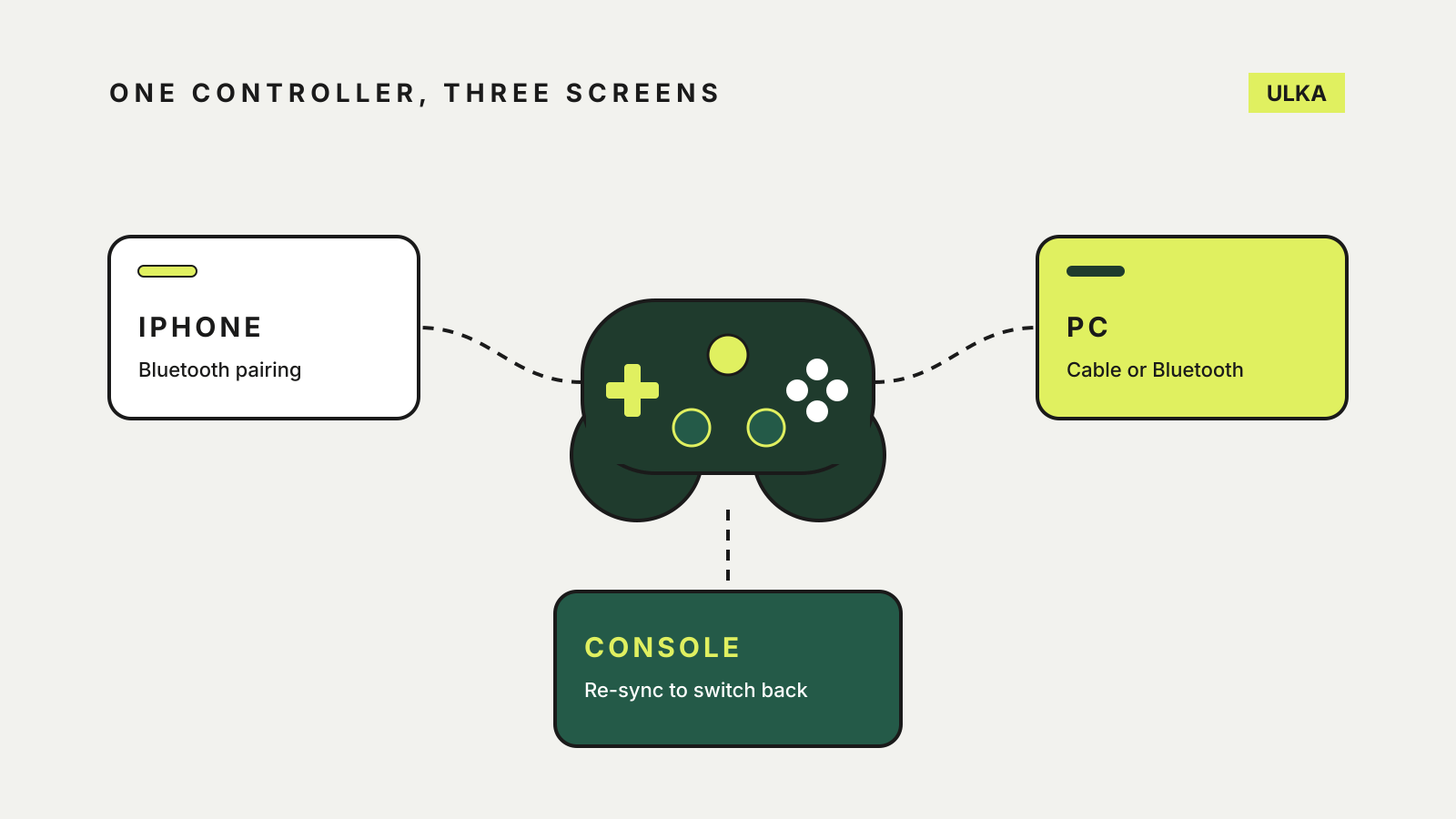
To use an Xbox controller on an iPhone, turn the controller on, hold its pair button until the Xbox logo flashes quickly, then pick it in the iPhone’s Bluetooth settings. Apple lists five Xbox controllers that work this way, and the same controller can then move between your phone, a Windows PC and the console with a few button presses.
This guide follows Apple’s and Xbox’s own support pages, checked on 18 October 2026. It covers the controller you probably already own rather than a new purchase.
Which Xbox controllers work with an iPhone
Apple’s page on connecting Xbox controllers names these models:
- Xbox Wireless Controller with Bluetooth (Model 1708)
- Xbox Wireless Controller Series S
- Xbox Wireless Controller Series X
- Xbox Elite Wireless Controller Series 2
- Xbox Adaptive Controller
Older Xbox One controllers without Bluetooth are not on the list. Xbox’s PC connection guide gives a quick way to tell: on a Bluetooth controller, the plastic around the Xbox button is part of the face of the controller. On models without Bluetooth, it is part of the top edge, where the bumpers are.
Pair it with an iPhone or iPad
- Press the Xbox button to turn the controller on.
- Press and hold the pair button (the small raised button on the top edge) for a few seconds, until the Xbox button flashes rapidly.
- On the iPhone, open Settings > Bluetooth and tap the controller in the list of nearby devices.
The same steps work on an iPad, Apple TV and Mac. Apple’s general controller guide adds that some controllers pair automatically when plugged into the Apple device with a USB cable that carries data as well as charge.
If the iPhone says the controller needs a firmware update, Apple points you to Microsoft’s instructions for updating Xbox controllers.
Change the buttons on an iPhone
On iOS 16 or later, open Settings > General > Game Controller, tap the controller’s name, then tap Default Controls to remap buttons. Apple says these settings are available for “a growing number” of controllers, so the options vary.
The same menu can hold a few extras:
- Home Button Overrides lets a listed game respond to the Xbox button instead of the system action.
- Profiles saves a custom layout you can apply to paired controllers.
- Buddy Controller combines two controllers into one player, so a second person can help with a difficult section.
Use the same controller on a Windows PC
Xbox’s PC guide gives three ways in:
| Connection | What you need | Worth knowing |
|---|---|---|
| USB cable | A cable that carries data; USB-C for Series X|S, Elite Series 2 and Adaptive controllers | Up to 8 controllers at once |
| Xbox Wireless | The Xbox Wireless Adaptor for Windows, or a PC with Xbox Wireless built in | Up to 8 controllers; fewer with headsets attached |
| Bluetooth | Windows 10 Anniversary Update or later | Headsets and attachments do not work; Xbox recommends one controller at a time |
For Bluetooth on Windows 11, hold the pair button for three seconds, then go to Settings > Bluetooth & devices > Add device > Bluetooth and choose the controller. Xbox notes that rumble does not work in PC games while the controller is connected over Bluetooth, which is one reason to use a cable for longer sessions.
Go back to the console
After you pair the controller with a PC, Xbox says you must re-sync it to the console before using it there again, either with the wireless sync button or a USB cable.
The controller that ships with the Xbox Series X|S has a shortcut. If it is connected to a Bluetooth device such as your iPhone, double-press the pair button and it switches straight back to the last Xbox Wireless connection, usually the console or a PC with an adaptor. To return to the phone, press and hold the pair button: the controller reconnects to the Bluetooth device you were just using.
If the controller will not connect
Apple suggests these fixes:
- Update the iPhone and the controller’s firmware.
- In Bluetooth settings, tap the info button next to the controller, choose Forget This Device, then pair it again.
- Disconnect other Bluetooth accessories, which can also reduce interference.
Apple also notes that support for extra features, such as a controller’s audio jack or lights, depends on the controller and the game.
If you play mostly through streaming services, our guide to cloud gaming in Australia covers the connection side. For a child’s console, see console parental controls.