If you are choosing between an authenticator app and an SMS code for your second factor, pick the authenticator app, and use a passkey or security key where the account offers one. The Australian Cyber Security Centre says authenticator apps are more secure than receiving a code by SMS or email, and its advanced guide tells people to move important accounts off SMS and email codes.
An SMS code is still far better than a password on its own, so the order of work is simple: turn on some form of multi-factor authentication first, then upgrade the method on the accounts that matter most. This guide explains how each method works, why a text message is the weaker option, and how to switch without locking yourself out.
The three options, from strongest to weakest
The ACSC’s Personal cyber security: Advanced steps guide puts it plainly: all forms of multi-factor authentication are a big improvement on a password alone, but some are more effective than others.
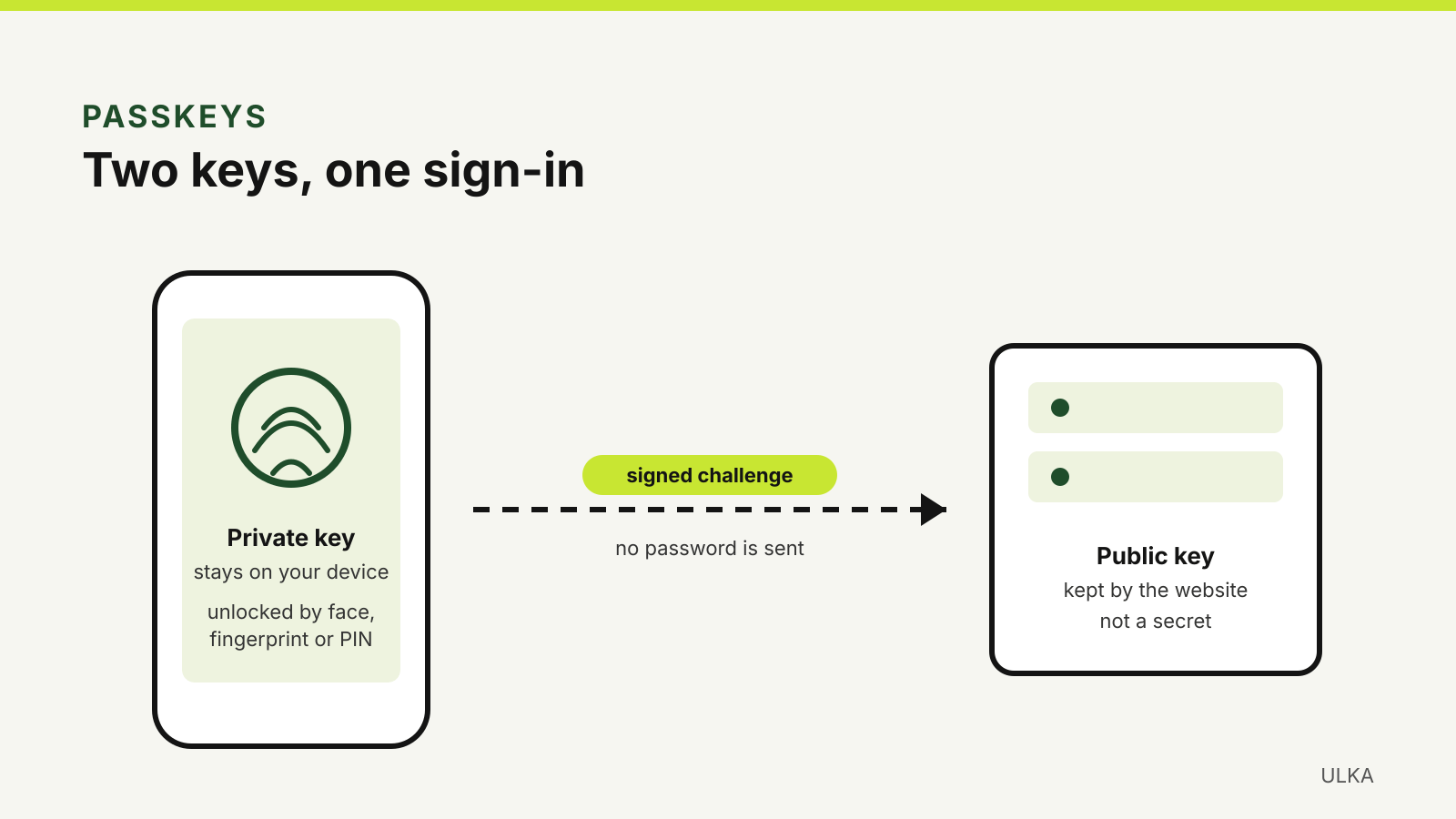
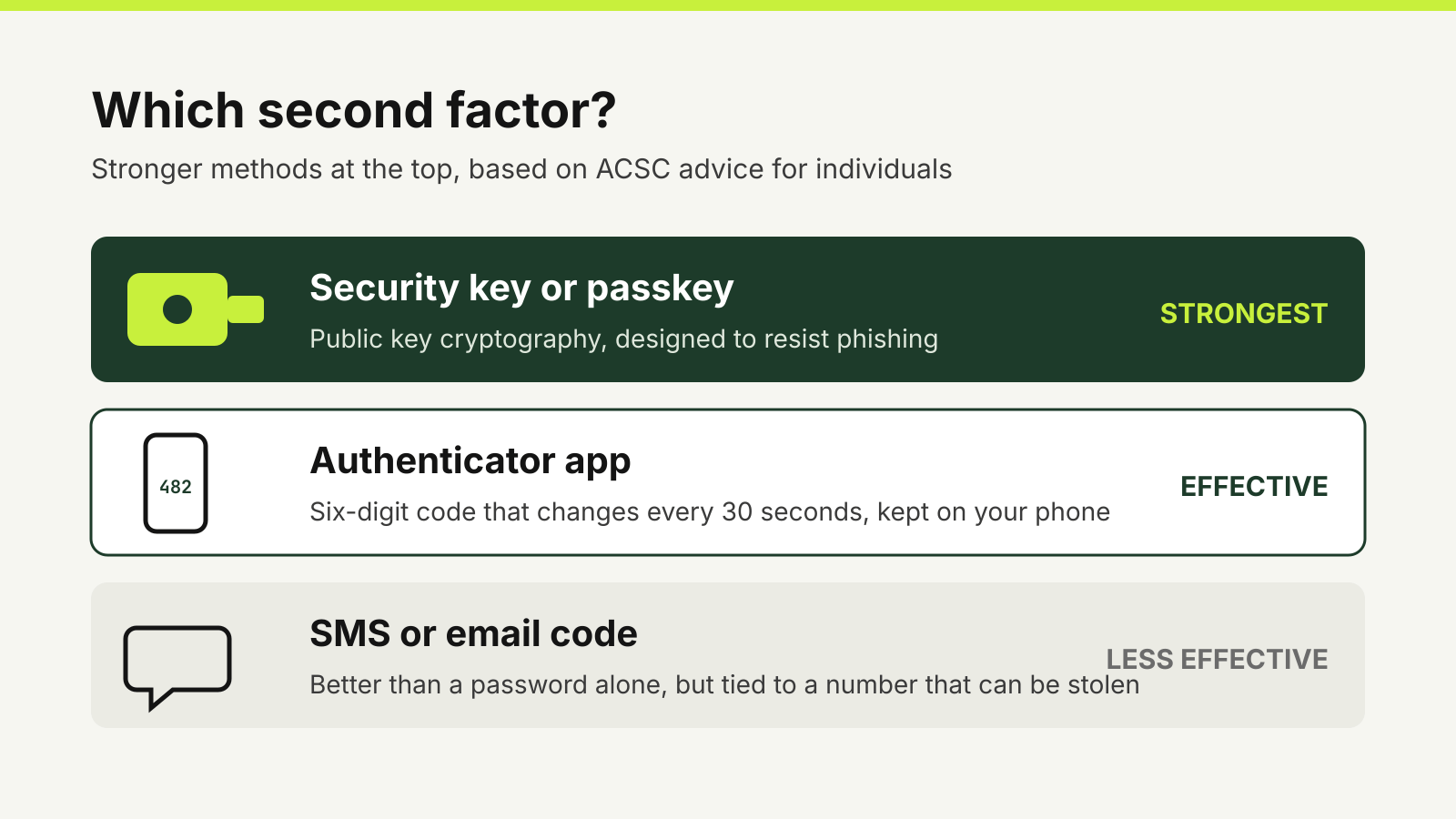
- Security keys and passkeys. A security key is a small USB, NFC or Bluetooth device. The ACSC calls it a more secure form of MFA than the other options. Its technical guidance explains why: the key uses public key cryptography to sign a challenge from the real service, and passkeys work the same way with the private key held on your device.
- Authenticator apps and physical tokens. These generate a one-time code on a device you hold. The ACSC lists them among the effective methods for home users.
- SMS, email and voice-call codes. The ACSC describes these as less effective methods and recommends changing to a security key, physical token or authenticator app.
How an authenticator app works
When you turn on MFA in an account’s security settings and choose the authenticator option, the site shows a QR code containing a unique setup key. You scan it with the app, or type the key in, and from then on the app produces a new six-digit code every 30 seconds. You enter that code after your password.
The codes are calculated on the phone from the setup key and the current time. myGov’s authenticator help page notes that this is why the device’s clock must show the correct local time. Google adds that an authenticator app keeps working when you have no internet connection or mobile service, which matters if you travel without roaming.
Common choices include Google Authenticator, Microsoft Authenticator and Apple’s Passwords app, and many password managers can store authenticator codes too. Check the service first, though: myGov says some authenticators, including Microsoft Authenticator, cannot be used with myGov because they do not meet its SHA256 requirement.
Why SMS codes are weaker
A text message goes to your phone number, not to a particular device. If a criminal gets your number moved to a SIM they control, the codes go to them. The Australian Communications and Media Authority describes the two usual routes on its stolen number page: an unauthorised port, where someone pretends to be you and moves your number to a new telco, and a SIM swap, where they ask your current telco to move your number to a SIM card they bought.
Australian rules make both harder. Under the ACMA’s porting rules, the new telco must confirm that the person asking for a port can use the phone, for example by sending an SMS code or calling the number, before the port goes ahead. Telcos must also use two or more proofs of identity for high-risk transactions such as a SIM swap. Those checks reduce the risk; they do not remove it, and an SMS code can still be phished like any other code.
Google’s help page makes the same point: any form of two-step verification adds security, but codes sent by text or call can be vulnerable to phone number-based hacks.
Where push prompts fit
Some services send a prompt to your phone instead of a code. Google says its prompts are easier than typing a code and can help protect against SIM swap and other phone number-based hacks, because they go to a signed-in device rather than a number. The risk is a prompt you did not expect. The ACSC’s advice is to never approve an unknown sign-in attempt and never share an MFA code with anyone.
Moving an account from SMS to an app
Start with the accounts the ACSC lists first: email, banking, accounts that store payment details, social media and accounts holding personal information such as myGov. Your email comes first because anyone who controls it can reset your other passwords.
For each account:
- Open its security or sign-in settings and add the authenticator app as a method.
- Save the backup codes the service offers. Google, for example, gives a set of ten single-use backup codes that you can print and store with important documents.
- Sign out and back in once using the app, to confirm it works.
- Decide whether to keep SMS as a backup. Some services require a second method before you can remove one.
myGov is a good example of that last point. It lets you choose a code by SMS, an authenticator, the older myGov Code Generator app or a passkey, and you can add only one authenticator. Its help page says you cannot remove an authenticator unless another strong sign-in option is set up, such as a Digital ID, passkey or codes by SMS. The myGov Code Generator app is being retired and is no longer available to download, so people still using it will be prompted to switch.
If your accounts support passkeys, they are the stronger upgrade. Our guide on how to set up passkeys covers Google, Apple, Microsoft and myGov.
Do not lose the app with the phone
The main drawback of an authenticator app is that the codes live on one device unless your app backs them up. The ACSC’s advice is to transfer the authenticator to a new phone before you reset or dispose of the old one, add a recovery method to each account and keep your backup codes. If you change your phone number, update it in your accounts while you can still receive messages on the old number. myGov notes that if you have lost access to the old number, you may need to sign in with Digital ID or create a new account.
A password manager that stores authenticator codes can make phone changes easier, because the codes come with your vault. Keep the password manager’s own sign-in protected with a different method, as the ACSC recommends turning on MFA for the password manager itself. Our password manager comparison looks at recovery options alongside passkey support.
If your number is taken
Signs include your phone suddenly losing service or messages about a port or SIM change you did not request. The ACMA says to contact your telco immediately, ask whether your number was ported without your consent and, if so, ask for the port to be reversed. If a SIM swap was made, ask the telco to deactivate that SIM and send you a new one. Then check your email and bank accounts and change their sign-in methods.
Questions
Is SMS two-factor authentication still worth using?
Yes, if it is the only option. The ACSC says every form of MFA is a significant improvement on a password alone. Where an account offers an authenticator app, passkey or security key, switch to that instead.
Is an authenticator app safer than SMS?
The ACSC says authenticator apps are more secure than receiving a code by SMS or email. The code is generated on your device, so it does not depend on your phone number.
What happens if I lose the phone with my authenticator app?
Use a backup code or another recovery method you set up in advance. That is why the ACSC recommends saving backup codes and adding a recovery method before you need them.
Does myGov support authenticator apps?
Yes. You can add one authenticator under Sign in settings. myGov says some apps, including Microsoft Authenticator, cannot be used because they do not meet its SHA256 standard.
Sources
Official guidance checked on 4 October 2026:
- Australian Cyber Security Centre: Protect yourself, multi-factor authentication.
- Australian Cyber Security Centre: Personal cyber security, advanced steps guide.
- Australian Cyber Security Centre: Implementing multi-factor authentication.
- ACMA: What to do if your number has been stolen.
- ACMA: Rules for porting a phone number.
- ACMA: Keep or transfer your phone number.
- Google Account Help: Turn on 2-Step Verification.
- Google Account Help: Sign in with backup codes.
- myGov: Use an authenticator.
- myGov: Use the myGov Code Generator app.