To set up passkeys, start with the account that would hurt most to lose, usually your email, then follow its own “create a passkey” option on a phone or computer you own. Your device creates the passkey and you unlock it with your face, fingerprint or screen-lock PIN instead of typing a password. The steps differ slightly between Google, Apple, Microsoft and myGov, and the decision that matters most is where each passkey is stored.
The Australian Cyber Security Centre describes passkeys as a faster and more secure way to log in than passwords, and its multi-factor authentication campaign calls them the easiest way to stay secure. This guide covers how they work, the setup steps for four common accounts and the recovery checks to make before you rely on them.
How a passkey differs from a password
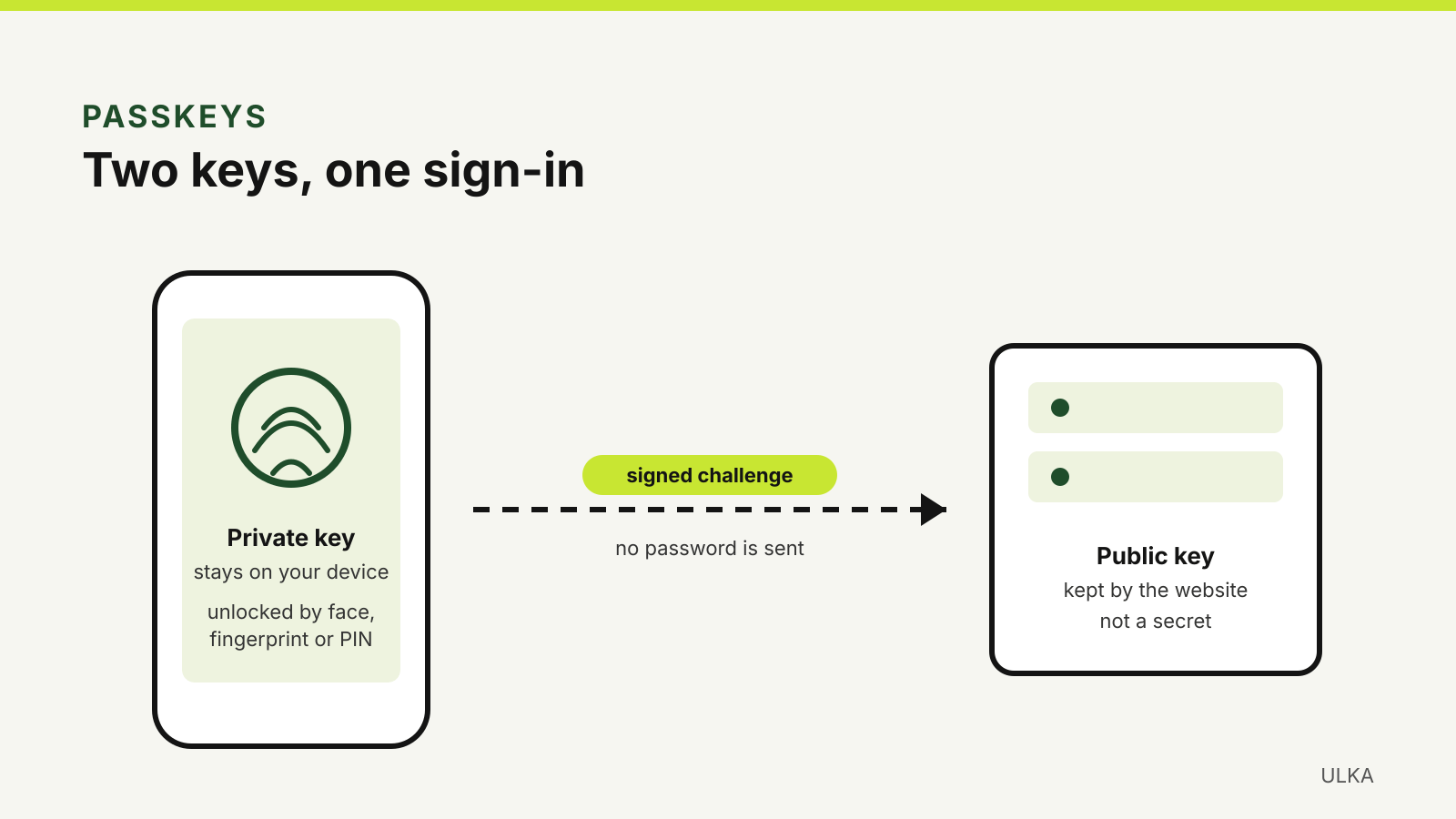
A password is a shared secret: you know it, the website stores a version of it, and anyone who tricks you into typing it on a fake page can reuse it. A passkey works with a pair of keys. Apple’s passkey security note explains that your device creates a unique key pair for each account. The public key is stored by the website and is not a secret. The private key stays with you, and the website never learns it.
When you sign in, your device proves that it holds the private key after you unlock it. Because nothing reusable is typed into the page, passkeys are designed to resist phishing. Google’s help page also notes that your fingerprint or face data stays on your device and is not shared with Google.
Before you start
Check three things first:
- Your devices are recent enough. Google lists Windows 10, macOS Ventura, ChromeOS 109, Android 9 and iOS 16 or later, with current versions of Chrome, Safari, Edge or Firefox.
- Screen lock is on. A passkey on your phone is unlocked with the same face, fingerprint or PIN as the phone itself. Microsoft’s troubleshooting page notes that synced passkeys will not show on a device without a screen lock.
- The device is yours. Google warns that anyone who can unlock a device holding your passkey can get into your account, so do not create one on a shared or work-issued computer. The ACSC gives the same advice and suggests keeping personal passkeys off employer-owned devices.
Google Account
- Go to myaccount.google.com/signinoptions/passkeys and sign in.
- Select Create a passkey and unlock your device when prompted.
- Repeat on other devices you use, or let Google offer to create one the next time you sign in on a supported device.
Adding a passkey does not remove your password or other recovery options. By default Google then uses passkey-first sign-in, but you can turn off Skip password when possible under Security & sign-in if you prefer to see the password prompt. Google says a newly created passkey can take up to seven days before it is available at sign-in unless you already have a trusted passkey or security key.
Apple Account and Apple devices
On an iPhone, passkeys are saved to iCloud Keychain and appear in the Passwords app. Apple’s iPhone User Guide says iCloud Keychain and two-factor authentication must both be on. For a website or app that supports passkeys, sign in as usual, open the account or security settings, and tap Continue when you are offered a passkey. If there is no passkey option, the service does not support one yet.
Passkeys saved this way sync to your other Apple devices signed in to the same Apple Account. Apple says iCloud Keychain is end-to-end encrypted with keys Apple does not know, and the keychain can be recovered even if all your devices are lost, subject to Apple’s recovery checks. You can delete a passkey in the Passwords app under Passkeys.
Microsoft account
- Sign in to your Microsoft account’s Advanced Security Options at account.live.com/proofs/manage.
- Choose Add a new way to sign in or verify.
- Select Face, Fingerprint, PIN, or Security Key and follow the prompts.
- Choose where to save it. Microsoft’s passkey setup page lists a password manager, a phone or tablet, a security key, or Windows Hello on the computer itself.
Work and school accounts use a different page, mysignins.microsoft.com/security-info, and your organisation may limit the options.
myGov
myGov now supports passkeys. Its help page gives these steps:
- Sign in to myGov and open Account settings from My account or the menu.
- Under Sign in settings, go to Passkeys and select Manage.
- Select Create passkey, verify your account and follow your device’s prompts.
You can register up to three passkeys. myGov recommends more than one if you use a hardware security key, and says that once a passkey is set up you can turn off your myGov password.
Where should the passkey live?
There are two broad choices:
- Synced passkeys are saved in a password manager, such as iCloud Keychain, Google Password Manager, Microsoft Password Manager or a third-party manager. They follow you to every device signed in to that manager, which makes recovery easier. myGov notes that you can only sign in on another device with a synced passkey.
- Device-bound passkeys live on one phone, computer or FIDO2 hardware security key. They cannot be copied, but losing the device means losing that passkey.
The ACSC suggests a FIDO2 security key for your most important accounts, with a second key as a backup in case the first is lost or damaged. If you already use a password manager, check that it supports passkeys before spreading them across several services. Our password manager comparison looks at passkey support alongside sharing and recovery.
Signing in on a computer that is not yours
If your passkey is on your phone, you can still sign in on another computer. Choose the passkey option on the sign-in page, pick “use another device” or similar, and scan the QR code with your phone. Bluetooth must be on for both devices, and Microsoft notes that both need an internet connection, although they do not need to be on the same network.
Keep a way back in
A passkey is only as dependable as your recovery plan. Before relying on one:
- Create passkeys on at least two devices, or use a synced password manager, for each important account.
- Keep your account’s recovery phone number and email up to date.
- Consider an account recovery contact for your Apple Account, which Apple offers for people who forget a password or passcode.
- After replacing a phone, set up the new passkey first, then delete the old one. Microsoft recommends this order.
The ACSC also recommends turning off password sign-in once a passkey is working, where the account allows it. Do that only after you have confirmed a second sign-in method that you control.
Questions
Do passkeys replace my password straight away?
Not always. Adding a passkey to a Google Account leaves your password and recovery options in place. Some services, such as myGov, let you turn the password off once a passkey is set up.
Can a passkey be phished?
Passkeys are designed to resist phishing because there is no reusable secret to type into a fake page. You still need to protect your device’s screen lock, since that is what unlocks the passkey.
What happens if I lose my phone?
A synced passkey is still available on your other devices signed in to the same password manager. A passkey stored only on the lost phone is gone, so you will need another passkey, a security key or the account’s recovery process.
Do all websites support passkeys?
No. If a site does not offer to create a passkey in its sign-in or security settings, it does not support them yet. The ACSC suggests using another phishing-resistant multi-factor method where passkeys are unavailable.
Sources
Official guidance checked on 3 October 2026:
- Australian Cyber Security Centre: Passkeys.
- Australian Cyber Security Centre: Multi-factor authentication, switch it on.
- Google Account Help: Sign in with a passkey instead of a password.
- Apple Support: About the security of passkeys.
- Apple iPhone User Guide: Use passkeys to sign in to websites and apps.
- Microsoft Support: Create and save a passkey.
- Microsoft Support: Troubleshoot signing in with a passkey.
- myGov: Use passkeys.