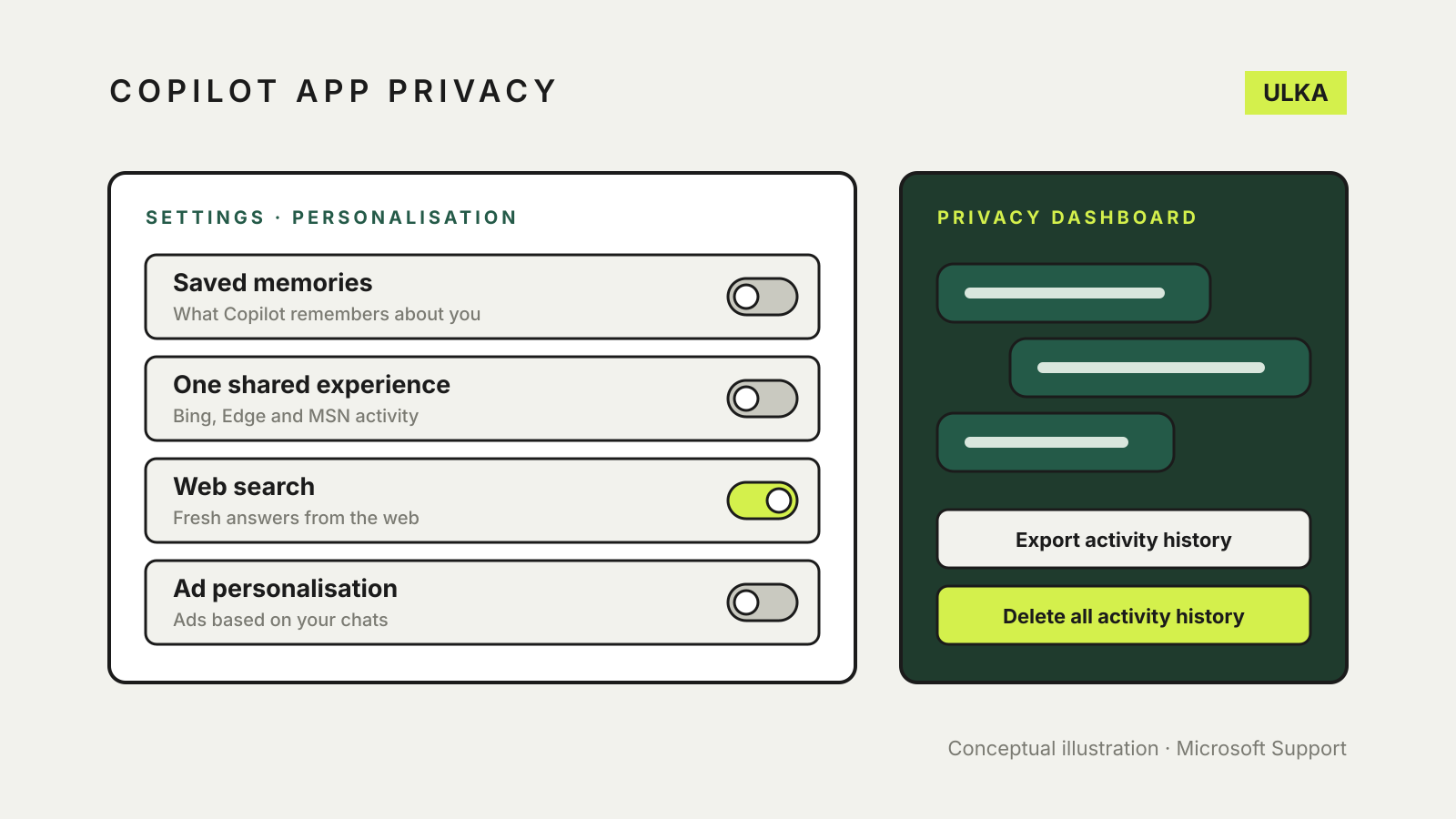
Copilot app privacy settings for a personal Microsoft account sit in two places. In the app, open Settings > Personalization to manage saved memories, shared experiences with Bing, Edge and MSN, web search and ad personalisation. To delete or export all your chat history, use the Microsoft privacy dashboard instead. Microsoft says prompts, responses and file contents in the updated app are not used to train its foundation models.
This guide covers the updated Microsoft Copilot app that Microsoft made available on 18 August 2026 for web, desktop and mobile, used with a personal Microsoft account. It follows Microsoft Support pages checked on 12 November 2026. Work and school (Microsoft Entra) accounts and Copilot inside Word or Excel follow different rules, which Microsoft documents separately.
Check which app you have
Microsoft’s privacy pages now split in two. Its article on privacy controls in the updated app applies only if you have updated to, or downloaded, the version available from 18 August 2026. If you are still on the older app, Microsoft points to a separate older privacy controls page, where the menus and options differ. Update the app before changing anything so the steps below match.
Saved memories
Copilot can remember details from your conversations, such as your communication style, favourite topics, goals and recurring tasks. Microsoft’s steps:
- Open Copilot and sign in with your Microsoft account.
- Open Settings, then select Personalization.
- To review what is stored, select Manage next to Saved memories. Delete single items with the delete icon, or select Delete all memories.
- To stop new memories, turn off the Saved memories toggle.
The order matters. Microsoft says turning off the toggle does not delete memories already saved. If you want a clean slate, delete them first, then switch it off.
Shared experiences with Bing, Edge and MSN
With a Microsoft account, your activity in Bing, Edge and MSN can shape what Copilot shows you, and your Copilot chats can shape those services in return. Microsoft gives the example of chatting about holiday ideas and then seeing related content in Bing and MSN.
To stop this, go to Settings > Personalization and turn off One shared experience. Microsoft notes that this does not control personalised ads, which is a separate setting, and that Edge has its own setting for using browsing activity.
Web search
Copilot can search the web to give current answers. If you would rather it answered without sending queries to the web, turn off Web search under Settings > Personalization. Expect answers about recent events to be less complete.
Ads in Copilot
Microsoft says you may see ads in Copilot if you do not have a Microsoft 365 subscription. Under Settings > Personalization, turning off Allow ads personalization limits you to generic ads. Microsoft says generic ads use only the latest content of your current conversation, while personalised ads can draw on chat history, saved memories and other Microsoft data you have chosen to share.
You can also turn off personalised ads across all Microsoft services on the Microsoft privacy dashboard. Microsoft says Copilot does not show personalised ads to users under 18, whatever the settings.
Chat history: delete one chat or all of them
To delete a single conversation, select it in the Chats list on the left, choose … More, then Delete.
To clear everything, Microsoft’s activity history guide sends you to the privacy dashboard:
- Sign in to the privacy dashboard with your Microsoft account.
- Go to Privacy > Empower your productivity > Copilot > Your Copilot app activity history > Copilot apps.
- Select Export all activity history to download a CSV copy first, if you want one.
- Select Delete all activity history, read the warning, then select Clear.
Activity from Copilot in Microsoft 365 apps such as Word, Excel and Outlook sits under a separate Copilot in Microsoft 365 apps option on the same page. If you also want to switch Copilot off inside Office apps, see our guide to turning off Copilot in Word.
What about model training?
For the updated app, Microsoft’s activity history page says prompts, responses and your file contents are not used to train foundation models. Optional feedback you send may be used to improve Copilot, but Microsoft says that feedback is not used to train those models either. That is why you will not find a training switch in the updated app’s settings.
The older app worked differently. Its privacy page lists Training on conversation activity and Training on voice conversations switches under Privacy, and says conversation history is kept for 18 months unless you delete it. If you still use the older app, check those switches or update.
Settings at a glance
| What you want | Where to change it (updated app) |
|---|---|
| Stop Copilot remembering details | Settings > Personalization > Saved memories |
| Delete what it already remembers | Saved memories > Manage > Delete all memories |
| Keep Bing, Edge and MSN out of it | Settings > Personalization > One shared experience |
| Answers without web search | Settings > Personalization > Web search |
| Generic ads only | Settings > Personalization > Allow ads personalization |
| Delete or export all chats | Privacy dashboard > Copilot apps |
A sensible routine
Settings reduce some uses of your data, but they do not make a consumer chatbot a safe place for passwords, one-time codes, card numbers or health records. Leave those out of any chat. If you use more than one assistant, our guide to AI chatbot privacy settings covers ChatGPT, Claude and Gemini, and our Microsoft Recall guide covers the separate Windows feature that saves snapshots of your screen.