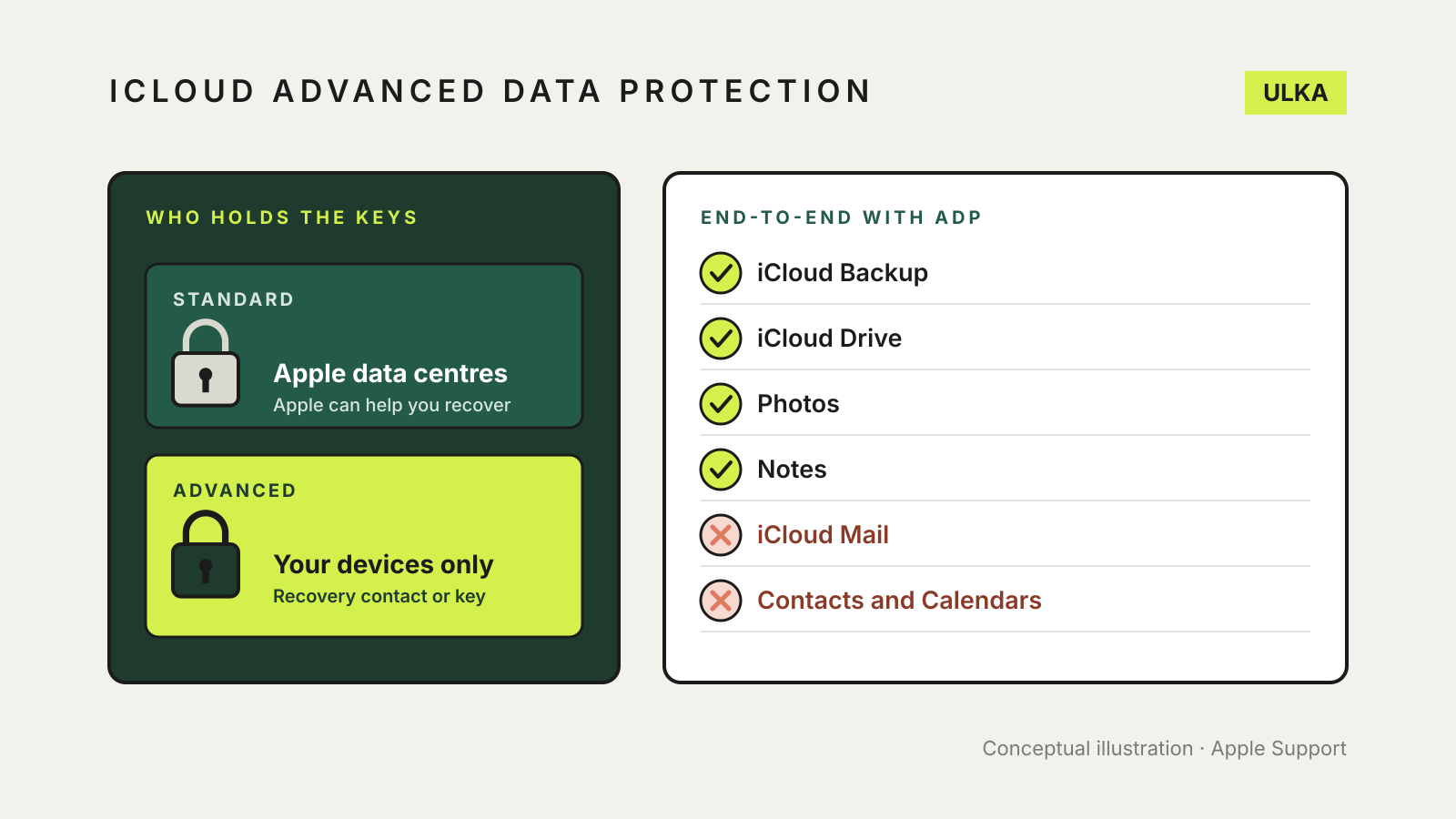
iCloud Advanced Data Protection is an optional Apple setting that switches most of your iCloud data to end-to-end encryption, so only your trusted devices hold the keys. It covers iCloud Backup, iCloud Drive, Photos, Notes and more, but not iCloud Mail, Contacts or Calendars. The trade-off is recovery: Apple can no longer restore that data for you, so you must set up a recovery contact or recovery key first.
This guide explains what changes when you turn it on, what stays the same, the recovery rules and how to switch it on or off. It follows Apple Support pages checked on 12 November 2026. Menu names can shift slightly between software versions.
Standard protection versus Advanced Data Protection
Apple’s iCloud data security overview describes two levels:
- Standard data protection is the default. Your iCloud data is encrypted in transit and at rest, but the keys for most categories are held in Apple data centres. That is what lets Apple help when you sign in on a new device, restore a backup or forget your password. Apple says 15 data categories, including Health data and passwords in iCloud Keychain, are end-to-end encrypted even at this level.
- Advanced Data Protection raises the number of end-to-end encrypted categories to 25. Your trusted devices keep sole access to the keys for those categories. Apple says no one else can read that data, not even Apple, and it stays protected even if Apple’s cloud is breached.
What moves to end-to-end encryption
These are the main categories Apple lists as changing when you turn the setting on:
| Data | Standard protection | Advanced Data Protection |
|---|---|---|
| iCloud Backup (device and Messages backup) | Keys held by Apple | End-to-end |
| iCloud Drive | Keys held by Apple | End-to-end |
| Photos | Keys held by Apple | End-to-end |
| Notes and Reminders | Keys held by Apple | End-to-end |
| Safari Bookmarks, Voice Memos, Wallet passes | Keys held by Apple | End-to-end |
| iCloud Mail, Contacts, Calendars | Keys held by Apple | Keys still held by Apple |
| Passwords, Health, Messages in iCloud | End-to-end | End-to-end |
Apple explains why three stay as they are. iCloud Mail has to work with the global email system, and Contacts and Calendars are built on CardDAV and CalDAV standards that do not support end-to-end encryption. Reminders synced through CalDAV are also excluded.
The backup change matters more than it looks. Under standard protection, Apple says an iCloud Backup includes a copy of the key for Messages in iCloud. With Advanced Data Protection, the backup and everything in it, including that key, is end-to-end encrypted.
What it does not hide
Some information stays under standard protection even with the setting on. Apple’s overview lists examples: the name, model and serial number of a backed-up device, file names and checksums in iCloud Drive, and dates when photos and notes were created or changed. Apple says this metadata is encrypted, but it holds the keys.
Sharing is the other gap. Apple’s Advanced Data Protection setup page says shared content stays end-to-end encrypted only when everyone in the share has the setting turned on. iWork collaboration, Shared Albums in Photos and anything shared with “anyone with the link” use standard protection regardless.
The recovery trade-off
This is the decision to think about before you switch it on. With Advanced Data Protection, Apple does not have the keys to recover your end-to-end encrypted data. If you lose access to your account, Apple says you need one of these:
- Your device passcode or password, from an iPhone, iPad or Mac you still have.
- A recovery contact, a trusted person with an Apple device who can give you a code. They get no access to your data.
- A recovery key, a 28-character code used together with a trusted phone number and an Apple device.
Apple guides you to set up at least one recovery contact or recovery key before it will turn the feature on. Store a recovery key somewhere safe and separate from your devices, such as a printed copy kept at home. If you use a password manager, our guide to password manager emergency access covers the same planning for your logins.
Requirements
According to Apple, you need:
- An Apple Account with two-factor authentication.
- A passcode or password on your device.
- Every device signed in to your account updated to at least iOS 16.2, iPadOS 16.2, macOS 13.1, watchOS 9.2, tvOS 16.2, HomePod software 16.0, or iCloud for Windows 14.1.
Managed Apple Accounts and child accounts are not eligible. If an older device blocks the switch, Apple says you can remove it from your account’s device list and try again. While the setting is on, you can only sign in on devices that meet those versions.
How to turn it on
Update the device first. Turning it on from one device turns it on for your whole account.
On iPhone or iPad: open Settings, tap your name, then iCloud. Scroll down, tap Advanced Data Protection, then Turn on Advanced Data Protection, and follow the prompts to review your recovery methods.
On Mac: choose the Apple menu, then System Settings. Click your name, then iCloud, then Advanced Data Protection, and click Turn On.
Apple notes that access to your data at iCloud.com is switched off once the feature is enabled. You can turn web access back on and approve temporary sessions from a trusted device.
How to turn it off
You can turn it off at any time from the same iCloud screen. Apple says your device then uploads the needed keys to Apple’s servers and your account returns to standard protection.
Who should turn it on
It makes most sense if your backups and photos hold material you would not want exposed in a breach, and you are confident you can keep a recovery method safe. If you regularly forget passwords, share photos widely by link, or rely on iCloud.com from shared computers, standard protection may suit you better. Either way, our guide to freeing up iCloud storage helps you tidy what is stored, and our backup recovery plan explains why a second copy outside iCloud is still worth keeping.