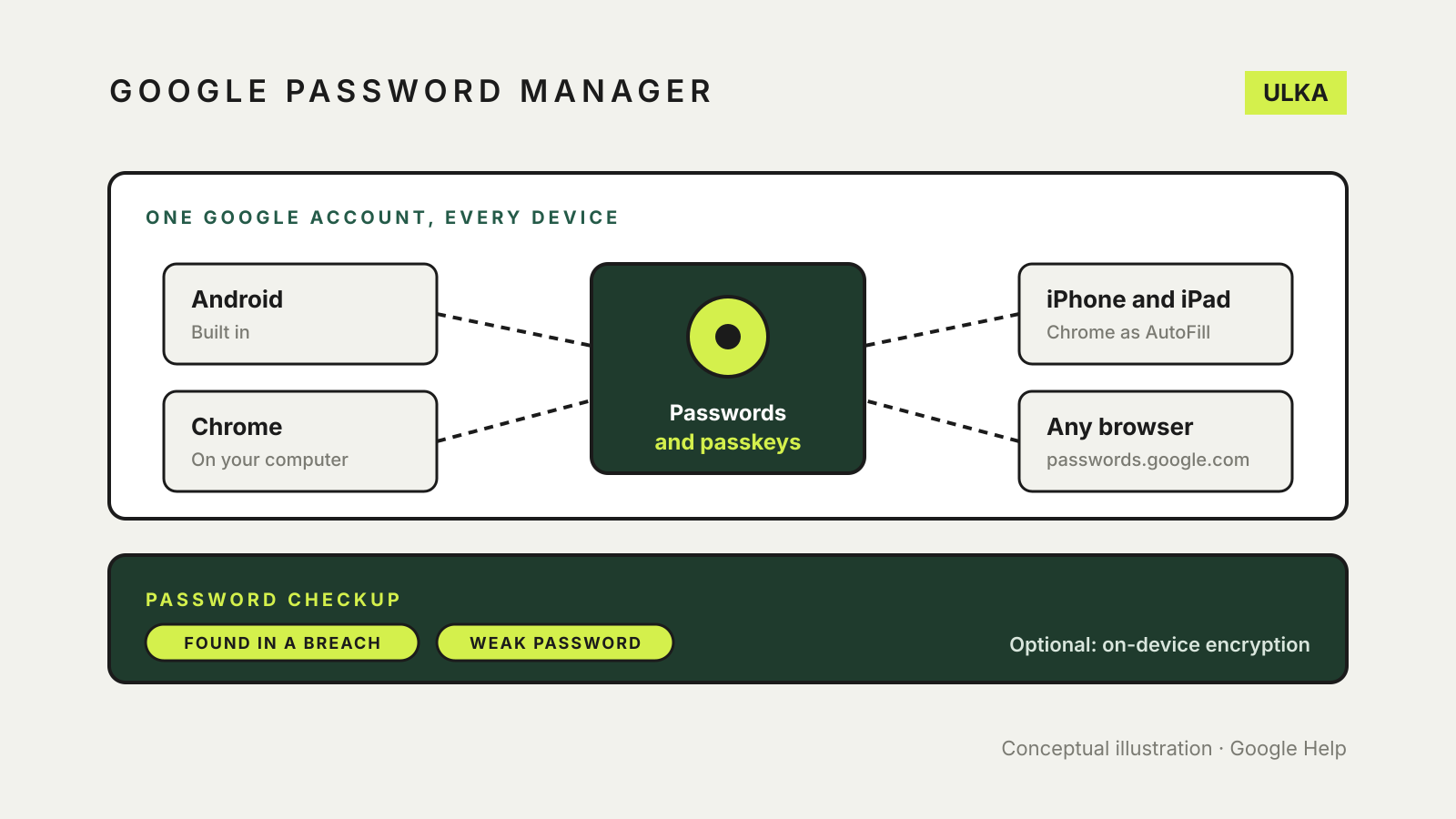
To use Google Password Manager, sign in to Chrome or your Android phone with your Google Account and let it save passwords and passkeys when you sign in to sites and apps. They then sync to every device signed in to the same account. On a computer, open Chrome’s menu and choose Passwords and autofill > Google Password Manager; anywhere else, go to passwords.google.com. On an iPhone, set Chrome as an AutoFill provider to use them in other apps.
This guide covers what Google Password Manager stores, how syncing works on Android, computers and iPhone, the security checks it runs, and when to add on-device encryption. It follows Google Help pages checked on 12 November 2026. Menu names vary a little between Android, Chrome versions and iOS.
What it stores
Google’s getting started page says Google Password Manager can create, save and autofill passwords and passkeys. You can also add notes to saved logins on a computer.
Where they are saved depends on whether you are signed in. Google’s Chrome password help explains that when you are signed in to Chrome, passwords are saved to your Google Account and available across your devices. When you are not signed in, Chrome keeps them only on that device. You can import device-only passwords into your account later.
Where to find your passwords
- On a computer: in Chrome, select the three-dot menu at the top right, then Passwords and autofill > Google Password Manager.
- On the web: go to passwords.google.com in any browser and sign in.
- On Android: open Chrome, tap More > Settings > Autofill and passwords > Google Password Manager. Google also offers a Google Password Manager app in the Play Store, which adds a home-screen shortcut.
Sync across Android, computers and iPhone
Google’s page on using passwords and passkeys across devices says anything saved while signed in to an Android device or Chrome can be used on every device signed in with the same account.
iPhone and iPad need one extra step if you want those passwords outside Chrome. Google’s iOS instructions:
- Open Chrome and tap More > Settings.
- Tap Autofill and passwords > Password Manager.
- Tap Settings > Passwords in Other Apps > Open Settings.
- In iOS Settings, tap General > AutoFill & Passwords and turn on Chrome.
On iOS 18.2 and later, Google says you can also choose Chrome under Default Apps > Passwords & Codes. To save passkeys from an iPhone into Google Password Manager, Google says the device needs iOS or iPadOS 17 or later, Chrome set as an AutoFill provider, and password sync turned on. If your household mixes iPhones and Android, our guide to Apple Passwords shared groups explains the Apple-only alternative.
Settings worth checking
On a computer, open Google Password Manager in Chrome and select Settings on the left. Google’s help pages describe these options:
| Setting | What it does |
|---|---|
| Offer to save passwords and passkeys | On by default; turn off if you use another password manager |
| Sign in automatically | Signs you in with saved details; turn off to confirm each time |
| Automatically create a passkey to sign in faster | Lets it create a passkey when you sign in with a saved password |
| Use Windows Hello (PC) or Use your screen lock (Mac) when filling passwords | Off by default; asks for biometrics or your device lock before filling |
| Declined sites and apps | Sites you told it never to save; remove one to be asked again |
Password Checkup
Google says Password Manager can warn you when a saved password has appeared in a data breach, and can flag weak ones that are easy to guess. To run it on a computer, open Google Password Manager in Chrome and select Checkup on the left. You get details of exposed passwords and weak, easy-to-guess ones.
Chrome can also alert you as you sign in. Google says this is controlled under Settings > Privacy and security > Security > Standard protection, with the option Warn you if a password was compromised in a data breach. On some sites, Chrome offers Change it for me to update a compromised password automatically. For what to do when a password turns up in a breach, see our guide to checking if a password has been leaked.
Share a password with family
Google lets you share a copy of a saved password with members of your Google family group. On a computer, open the password in Google Password Manager, select Share, and choose the family members. The copy is saved in their Google Account for autofill.
Google warns that if you use the same password on other accounts, the people you share it with may be able to get into those too. Share only unique passwords.
On-device encryption
By default, Google says your saved passwords are encrypted in transit and when stored, with the key kept in your Google Account. That lets Google decrypt them when you open them on passwords.google.com or in Chrome, and when it runs Password Checkup.
Google’s on-device encryption page describes an optional step up: your passwords and passkeys can then be unlocked only on your devices, with your Google password or the screen lock of an eligible phone or tablet. Two cautions from Google:
- Once set up, on-device encryption cannot be removed.
- If you lose your Google password and access to every signed-in device, you lose your saved passwords. The only way back is to reset and delete them all.
To turn it on, go to passwords.google.com, select Settings, then Set up under On-Device Encryption. Before you do, keep your account recovery phone number and email up to date, and turn on 2-Step Verification, as Google recommends. Our guide to password manager emergency access covers how to plan for someone else needing your logins.
Export or leave
You can export your passwords from Google Password Manager settings on a computer with Export passwords > Download file. Treat the downloaded file like a list of your passwords: import it where you need it, then delete it. To move in the other direction, our guide to importing passwords from Chrome walks through the switch. If you want features Google does not offer, such as emergency access, compare options in our password manager comparison.