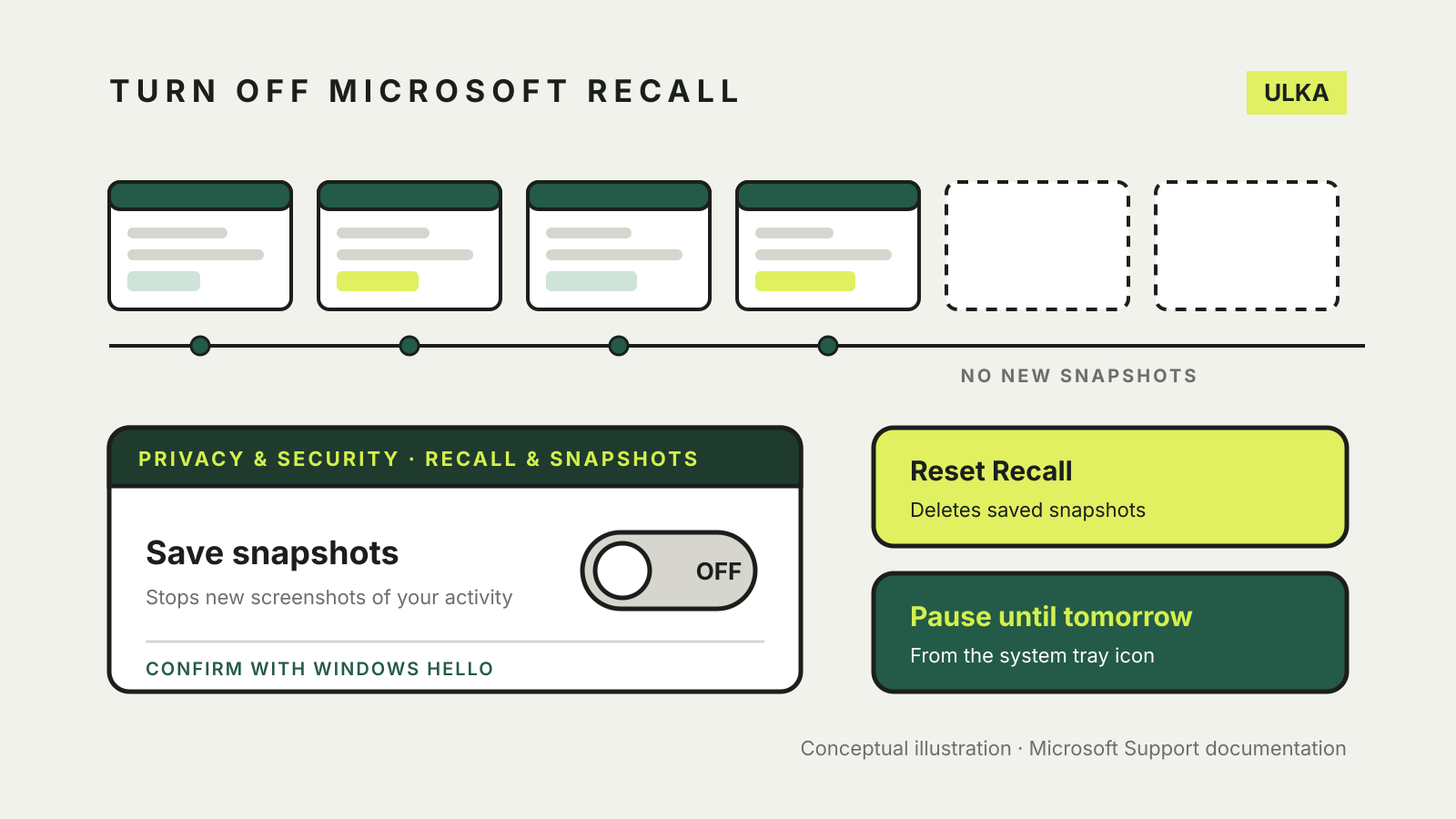
To turn off Microsoft Recall, open Settings > Privacy & security > Recall & snapshots and switch Save snapshots to Off. That stops Windows saving new screenshots of your activity. It does not delete the snapshots already on the PC, so if you want those gone as well, use Reset Recall under Advanced settings on the same page.
Recall is a Windows 11 feature for Copilot+ PCs that saves regular snapshots of your screen so you can search for something you saw earlier. This guide explains what it saves, where the data lives, and how to pause it, filter it, delete it or remove it. It follows Microsoft’s support pages, checked on 3 November 2026. Microsoft still labels Recall a preview, so menu names may shift slightly.
Is Recall on your PC at all?
Recall only runs on Copilot+ PCs. Microsoft’s Recall overview lists these minimum requirements:
- a Copilot+ PC that meets the Secured-core standard
- a neural processing unit (NPU) rated at 40 TOPS
- 16GB of RAM and 256GB of storage, with at least 50GB free to turn Recall on
- Device Encryption or BitLocker turned on
- Windows Hello Enhanced Sign-in Security, with at least one biometric option such as face or fingerprint
If your laptop is not a Copilot+ PC, there is nothing to switch off. On a work or school device, Microsoft says Recall is removed by default until IT administrators allow it.
What Recall saves
Saving snapshots is off by default. Windows asks for permission the first time you open Recall, and each person who signs in to the PC must opt in separately. Once it is on, Microsoft says a snapshot of your active screen is saved every few seconds and whenever the content of the active window changes.
Microsoft’s privacy page for Recall makes these points about the data:
- Snapshots and the information drawn from them are processed and stored locally on the PC, and are encrypted.
- Recall does not share snapshots with Microsoft or third parties, or with other Windows users on the same PC.
- Opening Recall or changing its settings needs Windows Hello confirmation.
- Recall does not record audio or save continuous video.
- Some diagnostic data may still be sent, depending on your Windows privacy settings.
A snapshot is still a picture of whatever was on your screen. Anyone who can unlock your Windows Hello sign-in can search it, so think about shared or family PCs before turning it on.
Turn off, pause or reset Recall
Stop saving snapshots
- Open Settings and select Privacy & security.
- Select Recall & snapshots.
- Switch Save snapshots to Off and confirm with Windows Hello.
When saving is off, the Recall icon disappears from the system tray.
Pause until tomorrow
Select the Recall icon in the system tray and choose Pause until tomorrow. Microsoft says snapshots resume automatically at 12:00 am. The icon shows a slash while saving is paused.
Delete everything and start again
- Go to Settings > Privacy & security > Recall & snapshots > Advanced settings.
- Select Reset Recall, then Reset.
- Confirm with Windows Hello.
Microsoft says a reset deletes all your snapshots and resets Recall’s settings. It does not delete snapshots you exported to a folder, or anything you already shared with another app or website.
Remove Recall completely
Microsoft’s privacy page says you can also remove Recall through Turn Windows features on or off. Search for that phrase from the Start menu, then clear the Recall box.
Keep using Recall, but filter it
If you find Recall useful, the filters are worth setting before you rely on it:
- Apps and websites: add them under Settings > Privacy & security > Recall & snapshots. Website filtering works in Microsoft Edge, Firefox, Opera and Google Chrome. Other Chromium-based browsers only filter private browsing.
- Private browsing: Microsoft says private windows in those browsers are not saved.
- Sensitive information filtering: on by default. Microsoft says it helps keep passwords, national ID numbers and credit card numbers out of snapshots. Treat it as a safety net, not a guarantee.
- Storage limits: Windows sets a maximum size for snapshots and deletes the oldest ones when it is reached. You can change the size and how long snapshots are kept.
Microsoft adds that a filtered website can still appear in parts, for example through embedded content or a background tab. If a snapshot slips through, open it in Recall, select … and delete it, or delete all snapshots from that app or site at once.
Recall needs BitLocker or Device Encryption turned on, so keep your BitLocker recovery key somewhere safe. If you are also switching off other AI features, see our guide to turning off Copilot in Word, Excel and PowerPoint.