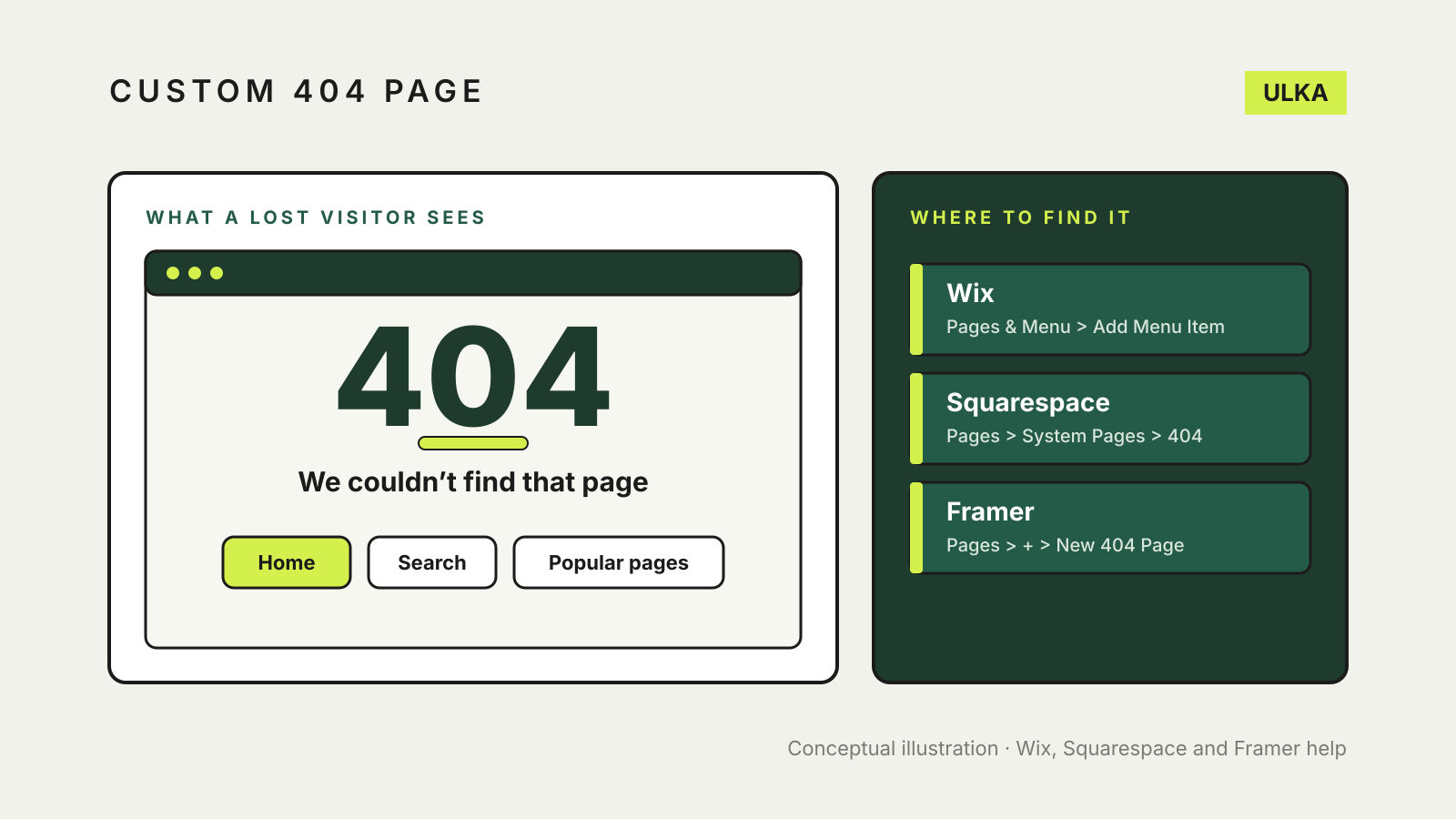
To create a custom 404 page, add a page of the “not found” type in your builder, then publish. In Wix, open Pages & Menu, select Add Menu Item, then New Page and (404) Error Page. In Squarespace, build a normal page in the Not linked section and select it under Pages > System Pages > 404 Page. In Framer, select + in the Pages panel and choose New 404 Page.
This guide gives the steps for each builder, what to put on the page, how to test it and why Squarespace warns about a “Soft 404” alert in Google Search Console. It follows each company’s help pages, checked on 27 November 2026.
Why a custom 404 page is worth ten minutes
A 404 page is what a visitor sees when a link is dead or a web address is mistyped. Squarespace says its sites show a Not Found message automatically when the server cannot locate a page, and that customising it lets you tell visitors what went wrong while keeping the look of your site. Framer says a branded 404 page helps maintain a professional experience when visitors reach a page that does not exist, often because it was removed or the URL was mistyped.
A custom page is a courtesy, not a fix. If you have moved or renamed pages, a 301 redirect sends visitors and search engines to the new address, while the 404 page catches the links nobody redirected.
Create a custom 404 page in Wix
Wix says you need a premium plan to customise your 404 error page. Then:
- Open your site in the editor.
- Select Pages & Menu on the left.
- Select Add Menu Item at the bottom of the panel.
- Select New Page, then (404) Error Page.
- Hover over the template you want and select Add Page.
- Customise it, then publish your site.
Wix suggests changing the text to match your tone, adding your site menu, linking to popular sections and changing the default image through Change Vector Art. It also says you can add an Error 404 from Settings at the top of the editor. You can change the browser tab title in Page Settings, but the page URL always contains “error404”.
Create a custom 404 page in Squarespace
Squarespace’s steps depend on which version of Squarespace your site uses, and its help article links to a separate page for identifying your version. To view or change your 404 page, open the Pages panel, scroll to the bottom, select System Pages, then 404 Page. It is set to System Default, which links to your home page and search page.
To use your own design:
- Create a new page and place it in the Not linked section of the Pages panel.
- View your current 404 page using the steps above.
- Use the drop-down menu to select your custom page.
Squarespace says dropdowns and index pages cannot be used as 404 pages. Include an error message telling visitors the page cannot be found, and consider links to your home page and search page like the default page. It also notes that redirecting to a 404 page does not change the URL in the browser’s address bar.
Create a custom 404 page in Framer
Framer’s steps are the shortest:
- Open the Pages panel in the left sidebar.
- Select the + icon.
- Choose New 404 Page from the menu.
Framer says it creates and assigns the page as the project’s 404 page automatically. Publish your site, then test it.
Compare the three
| Builder | Where to start | Notes from the help page |
|---|---|---|
| Wix | Pages & Menu > Add Menu Item > New Page > (404) Error Page | Premium plan needed; URL always contains “error404” |
| Squarespace | Pages > Not linked, then Pages > System Pages > 404 Page | Dropdowns and index pages cannot be used; Soft 404 alert possible |
| Framer | Pages panel > + > New 404 Page | Assigned as the 404 page automatically |
Hostinger’s help page on error pages says customising error pages in Hostinger AI Builder is yet to be supported, so check what your own plan allows before planning a design.
What to put on the page
The three help pages agree on the basics:
- A plain message that the page cannot be found. Squarespace’s default reads “We couldn’t find the page you were looking for”.
- A link back to your home page and, if your builder has one, your search page.
- Links to the sections visitors most often want, as Wix suggests, and your site menu.
- Your usual look, so visitors know they are still on your site.
Keep it short. The aim is to get the visitor to a working page.
Test it
- Wix: go to the URL of one of your pages and add extra numbers or letters to the end, then open it.
- Framer: after publishing, open an address that does not exist on your domain, such as example.com/this-page-does-not-exist, and check that your page appears instead of the default.
- Squarespace: do the same with a made-up address on your domain, and check that the drop-down in System Pages > 404 Page shows your custom page.
If Google Search Console shows a Soft 404
Squarespace says a custom 404 page might trigger a “Soft 404” alert when you verify your site with Google Search Console, and that it does not mean your site has a problem. Google flags the page because it sees a contradiction: an indexable page that says it does not exist. To remove the alert, Squarespace says to use the System default 404 page or to use no-index tags to hide the custom page from search engines.
Google’s own documentation says Google does not index URLs that return a 4xx status code, and that a page showing an error message while returning a success code is reported as a soft 404. If you have not added your site to Search Console yet, see our guide to adding a website builder site to Google Search Console.