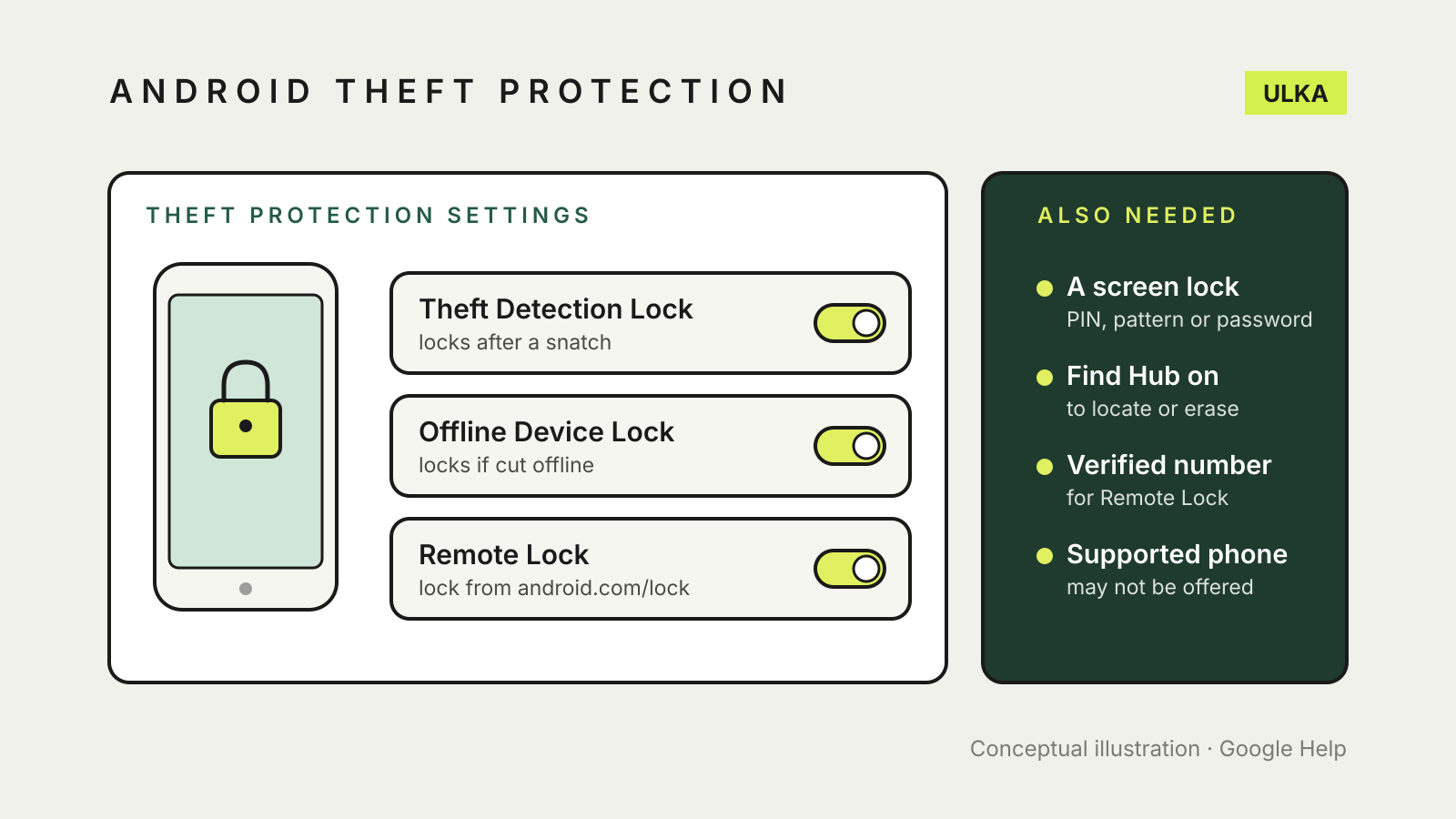
Android theft protection is a group of settings that lock your phone if someone grabs it, cuts its connection or guesses your PIN. Open Settings > Google > All services > Theft protection and turn on Theft Detection Lock, Offline Device Lock and Remote Lock if your phone offers them. You also need a screen lock and Find Hub switched on, so you can locate or erase the phone later.
This guide follows Google’s support pages, checked on 26 November 2026.
What each theft protection setting does
Google lists these features on its Theft protection page. Availability depends on your phone and Android version: Google says that if a setting is greyed out or missing, your device does not support it.
| Feature | What it does | Main limits |
|---|---|---|
| Theft Detection Lock | Uses motion sensors, Wi-Fi and Bluetooth to detect someone snatching the phone and running, cycling or driving off, then locks the screen | Not active while the screen is locked; may not trigger with a stable Wi-Fi or Bluetooth connection |
| Offline Device Lock | Locks the screen if the phone is used offline for a short period, to stop a thief cutting the internet to block Find Hub | Phone must be unlocked when it goes offline; can lock twice in 24 hours |
| Failed Authentication Lock | Locks the phone after repeated wrong PIN, pattern or password attempts | Needs a screen lock |
| Remote Lock | Lets you lock a lost phone from android.com/lock using your verified phone number | Needs an active SIM, verified number and Find Hub; twice in 24 hours |
| Identity Check | Asks for fingerprint or face, not a PIN, for sensitive actions when you are away from trusted places | Only on certain devices |
Turn it on
All of these live in one place: Settings > Google > All services > Theft protection, under Personal & device safety. Theft protection features need a screen lock, so set a PIN, pattern or password first.
- Theft Detection Lock and Offline Device Lock: switch each one on from the Theft protection page.
- Failed Authentication Lock: Google says it is on by default, but it requires a screen lock.
- Remote Lock: choose Remote Lock and turn it on. If your number is not verified, tap Verify number and turn on Automatically verify phone numbers. You can also set an optional security question under Remote Lock > Security question.
- Identity Check: choose Identity Check and activate it. You will need a Google Account, a screen lock, biometrics and trusted places set up.
Find Hub: locate, lock or erase
Theft protection works alongside Find Hub. Google says that with Find Hub on you can ring, locate, secure and erase a lost device. To use it, sign in to a Google Account, turn on location and turn on Allow device to be located in Settings > Security > Find Hub. Remotely locking or erasing needs 2-Step Verification, so keep a backup code or security key.
Wiping a phone needs a Find Hub sign-in; Remote Lock alone only locks it.
Remote Lock: what to know
If the phone is offline, Google says Remote Lock takes effect once it reconnects. After a remote lock, it can only be unlocked with the phone’s own screen lock.
What these settings do not do
They do not replace a strong screen lock, and they will not catch every theft. Theft Detection Lock may not trigger in some situations, as the table notes. If your phone is stolen, the steps in our guide to what to do if your phone is lost or stolen in Australia cover blocking the handset and your SIM, and our guide to preventing SIM swap fraud covers protecting your number. iPhone owners can read about Stolen Device Protection.