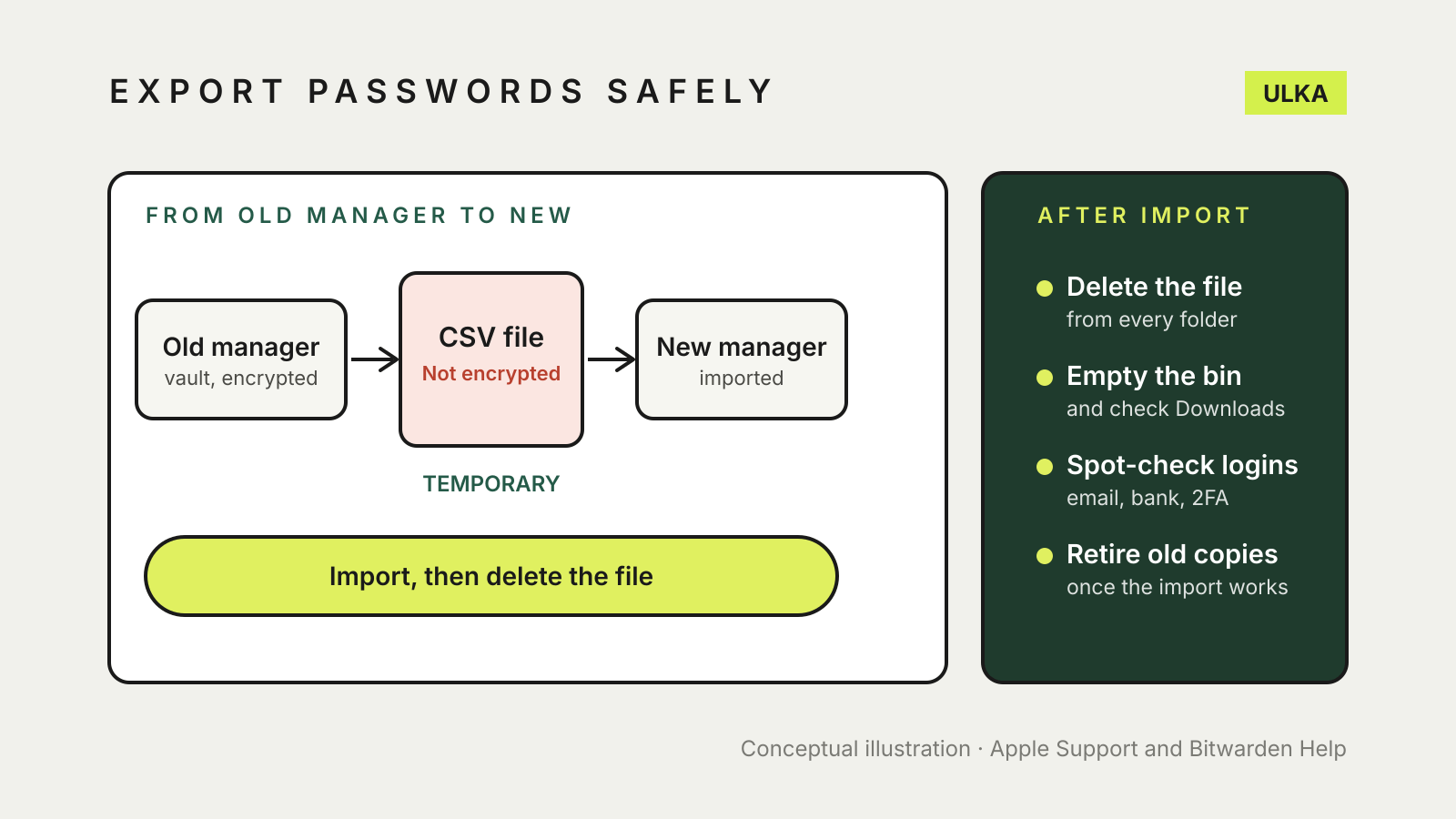
To export passwords safely, treat the exported file as the most sensitive document on your computer. Apple warns that exported passwords are not encrypted and are visible to anyone who can open the file. Export only on a device you trust, import straight away into the new password manager, then delete the file from every folder, download list and bin.
This guide follows Apple, Google and Bitwarden support pages, checked on 26 November 2026.
Why the export file is risky
A password manager keeps your vault encrypted. An export does the opposite: it writes your logins to a plain file. For Apple’s Passwords app on Mac, that file is a CSV, and Apple says: “Passwords you export are not encrypted and are visible to anyone who has access to the file.”
The risk is small if you handle it quickly. It grows if the file lands in a synced folder, an email draft or a shared computer. Treat the export as temporary, and plan the delete step before you start.
Before you export
- Sign in on a device you control. Avoid shared or work computers.
- Pick where the file goes. Save it somewhere you can find and delete, not a folder that syncs to the cloud.
- Have the new manager ready. Create the account, set a strong master password and save its recovery details first. Our guide to password manager account recovery lists what to keep.
- Check what will not come across. Apple says you cannot export Wi-Fi passwords, passwords shared with a group unless you created the group, or access to Sign in with Apple accounts.
Export from Apple Passwords on Mac
Apple’s guide gives these steps for the Passwords app on Mac:
- Open the Passwords app.
- For everything, choose File > Export All Passwords to File, then click Export Passwords. For one login, select it and choose File > Export Selected Password to File.
- Choose a save location and click Save.
Apple’s iPhone User Guide also has an Export passwords page under Passwords > Import and export, which says you can export one or all passwords to another password app.
Export from Google Password Manager in Chrome
Google’s help page for Chrome on a computer says to open Google Password Manager, select Settings, and next to Export Passwords select Download file. Google’s page does not describe the file format or give security advice, so apply the same rules: save it somewhere temporary and delete it after import.
Import into the new manager
Each manager has its own import tool. In Bitwarden, for example:
- Web app: choose Tools > Import, pick the destination vault and file format, upload the file and select Import.
- Browser extension: go to Settings > Vault options > Import items.
- Mobile: Bitwarden says you can use its web app in a mobile browser, and on supported devices a direct import through the Credential Exchange Protocol on iOS 26 or later or Android 14 or later.
Bitwarden lists direct import options for LastPass, 1Password, Firefox and Chrome, Edge and Chromium browsers, and says you can import from any manager that exports a file. If yours is not listed, you may need to edit the file to match a supported format.
Our guide to importing passwords from Chrome covers the browser side of this step.
Delete the export file
Bitwarden’s instructions are plain: after the data is imported, delete the exported file from your computer. In practice:
- Delete the file, then empty the Trash or Recycle Bin.
- Check the Downloads folder and any cloud-synced folder for stray copies.
- Open the new manager and spot-check a few important logins, including your email, bank and any logins with a second factor.
- Remove the old copies of your passwords from the previous manager or browser once you are sure the import worked. Bitwarden suggests this if you no longer need them there.
Passkeys and shared items
Bitwarden’s import page does not confirm that passkeys come across in a file import. Check your important accounts for passkeys after you switch, and set them up again where needed. Shared items can also differ: Apple’s export leaves out group passwords you did not create, so ask the group’s creator to share them again.