Image Playground is Apple’s image-creation tool for Apple Intelligence on iPhone. You type a description, choose a style and, if you like, add people from your Photos library, and it makes an original image. Apple’s iOS 27 guide says it needs an iPhone 15 Pro, iPhone 15 Pro Max or any iPhone 16 model or later, and that usage limits may apply. Apple’s feature list includes English (Australia).
This guide covers what Image Playground can make, how to use it, what the usage limits mean, how images are marked and what Apple says about ChatGPT-style images. It follows Apple’s support pages, checked on 25 November 2026. Apple’s guide has separate versions for iOS 27, iOS 26 and iOS 18, so menus and features on an older iPhone may differ from what is described here.
What you need
Apple’s iOS 27 guide says Apple Intelligence on iOS 27 or later is available on an Apple Intelligence-enabled iPhone 15 Pro, iPhone 15 Pro Max or iPhone 16 model or later. Apple also says Apple Intelligence is not available in all languages or regions.
Apple’s feature availability page for Australia lists Image Playground for English (Australia), so a phone set to Australian English is covered. If Image Playground does not appear, check that your iPhone model and iOS version meet the requirement and that Apple Intelligence is turned on.
How to make an image
- Open the Image Playground app.
- Start a new image.
- Describe the image, choose a style, or add a person or another subject.
- Choose an aspect ratio if you want one.
- Create the image.
Apple lists the ways you can shape the result:
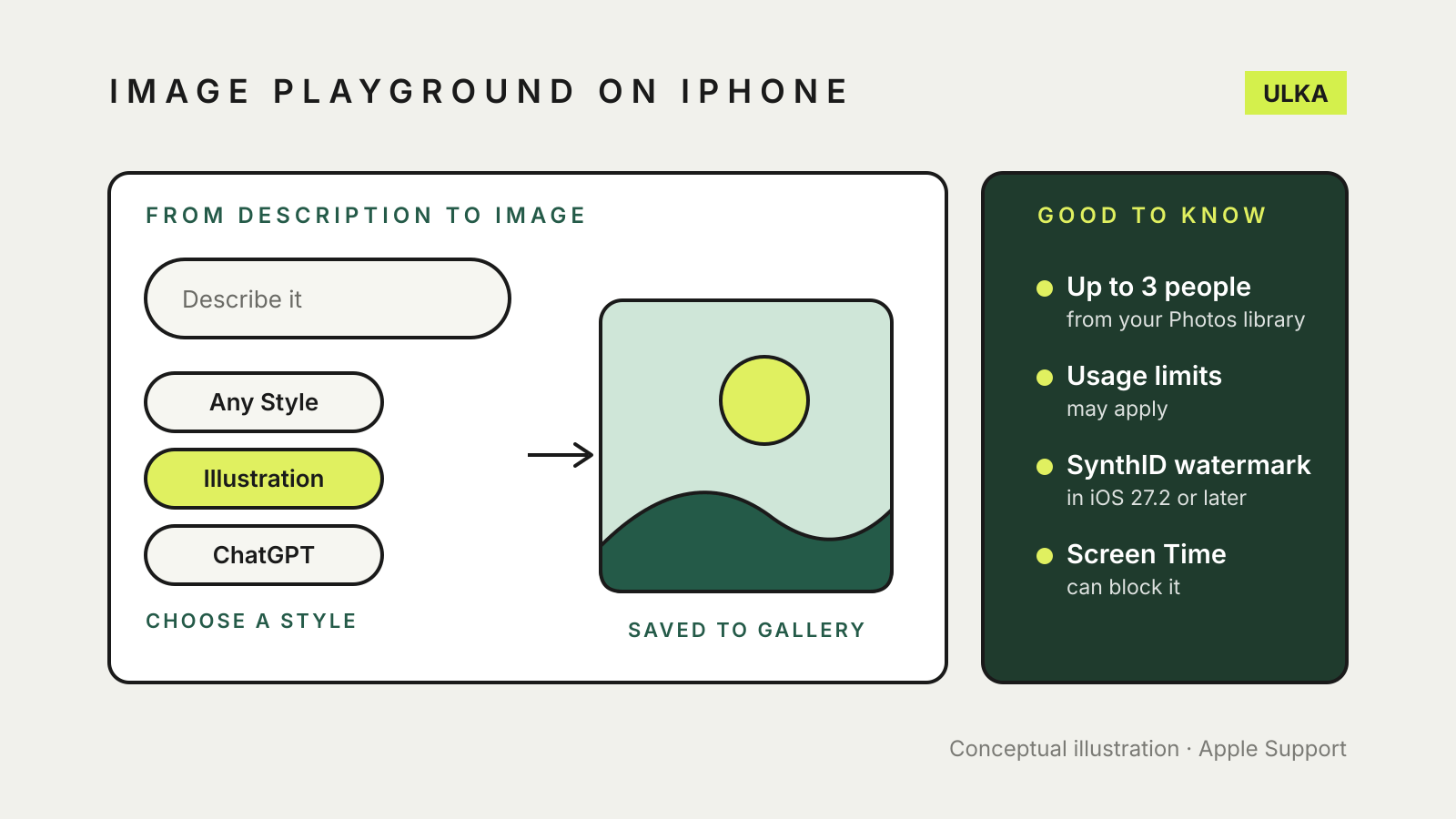
- Describe it. Enter a text description.
- Choose a style. Apple Intelligence styles include Any Style and Illustration. With Any Style, you can describe the style you want as part of the description. Apple also lists a ChatGPT option, where you describe the style you want. A Genmoji option lets you save the result with your stickers.
- Add people. Choose a person from your Photos library. You can add up to three. Apple warns that if your text description does not match the person you chose, the image is personalised from the photo rather than the text.
- Add another subject. Use a photo of something else, such as a pet, nature or food.
Every change is saved automatically to your gallery, and the versions you create from one idea are grouped together. Apple says Image Playground features also appear in Freeform and Messages, and in Keynote, Pages, Apple Invites and supported third-party apps.
Edit, share or delete an image
To change an image, open it in the gallery and either describe a change, such as a new background or style, or make a targeted edit. For targeted edits, you tap, brush or circle an object, then move it, resize it, swap it for another image, change it or remove it. Tap Apply Change to save. Swiping up or down moves between versions, and you can keep refining from any of them.
You can share or copy an image from the same screen. Apple’s note on deleting is worth knowing: if you delete an image from Image Playground, it is deleted on every device where you are signed in to the same Apple Account.
Usage limits
Apple’s guide says usage limits may apply. Apple’s “usage limits” page lists Image Playground among the features that rely on powerful server-side models. It says that in future Apple will apply limits to these features, that limits may vary by feature, request complexity, system demand and system policies, and that once you reach a limit, that feature becomes available again after a time-out period. It adds that increased access will be available for a fee.
Apple does not publish a fixed number of images per day on those pages, so we cannot give you one. Apple’s Usage Terms say that if you reach a limit, the feature may become unavailable or limited until the limit resets, and that you can keep using other features on your device. The terms also cover unreasonable use: excessive, automated or abusive use may be restricted or throttled.
ChatGPT style images and your data
Apple’s footnote on the ChatGPT option says ChatGPT uses generative models and outputs may vary, and that when you use the ChatGPT extension you choose what content to send. Your request and attachments, together with limited data such as time zone, country, device type, language and the feature being used, are sent to ChatGPT. If you would rather not send that, stick to Apple’s own styles.
For a wider look at what your phone sends to which service, see our guide to turning off Apple Intelligence feature by feature.
Marking and parental controls
Apple says that in iOS 27.2 or later, most images created or edited with Apple Intelligence tools include a hidden SynthID watermark, which helps identify whether an image was generated or modified with generative tools. You can check for the watermark with the SynthID Detector. For other ways to check an image, see how to tell if an image is AI-generated.
Parents can block image creation features, including Image Playground, in Screen Time settings. Apple says the recommended age for realistic images is 18+.
Using the images
Apple says use of Apple Intelligence features is subject to the Apple Intelligence Terms and Conditions. We have not summarised those terms here, so read them before using an image for a business or a client. Our guide to using AI images commercially explains what to look for, and our comparison of AI image generators covers tools with more control over output.