Tamper protection is a setting in Windows Security that stops other apps from switching off or changing key Microsoft Defender Antivirus protections, including real-time protection and cloud-delivered protection. To check it, open Windows Security > Virus & threat protection > Manage settings and look for the Tamper protection toggle. If it is on, leave it on unless you have a specific reason, and remember that an administrator can still change it.
This guide explains what tamper protection blocks, how to check or change it, why real-time protection will not switch off while it is on and what it does not do. It follows Microsoft’s support and Learn documentation, checked on 25 November 2026.
What tamper protection does
Microsoft says tamper protection helps prevent malicious apps from changing important Microsoft Defender Antivirus settings. Its Learn documentation explains why that matters: during cyberattacks, attackers often try to disable security features on a device so they can reach data, install malware and exploit identities and devices.
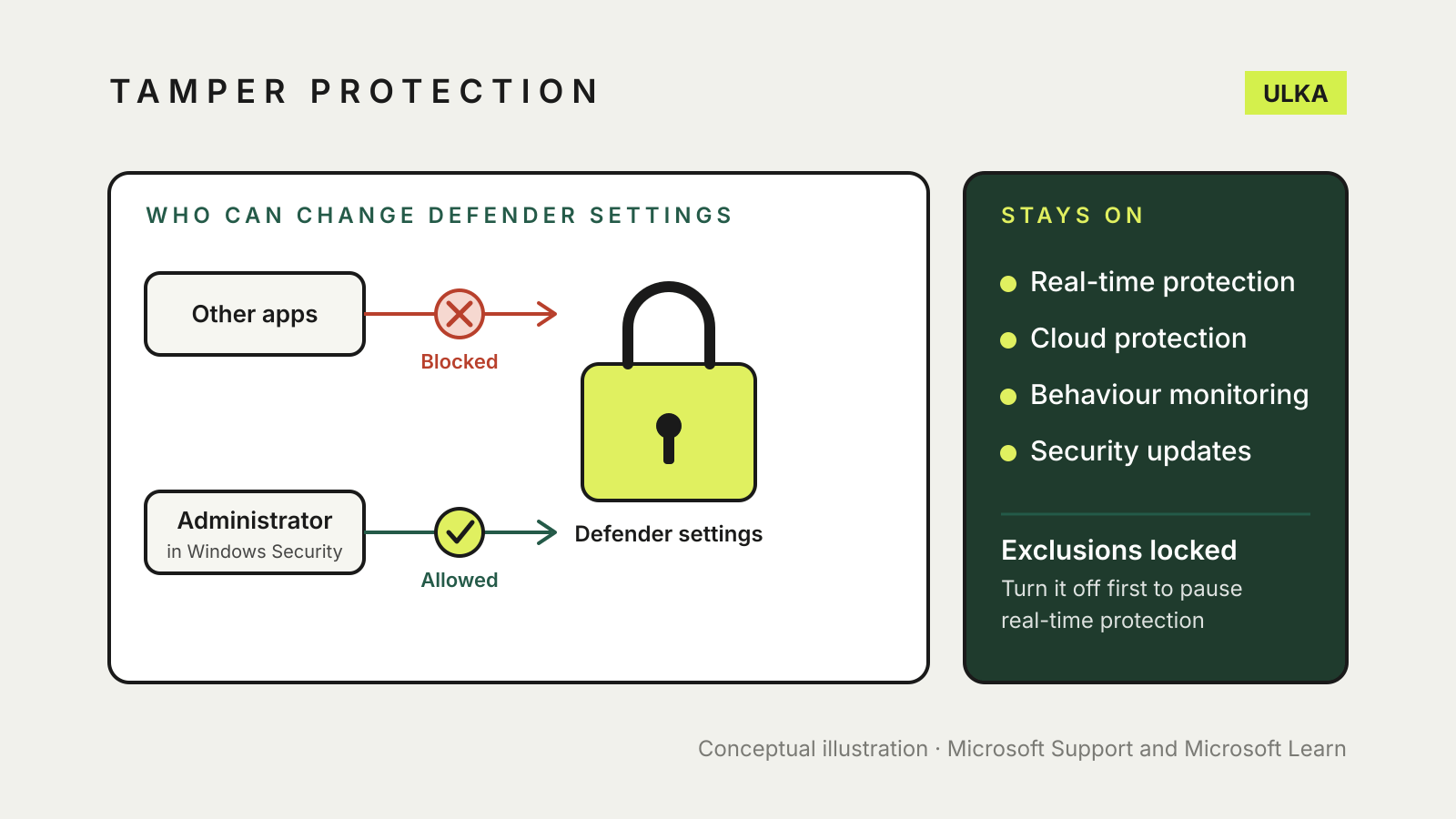
When tamper protection is enabled on a Windows device, Microsoft’s documentation says these protections cannot be changed:
- virus and threat protection stays enabled;
- real-time protection stays turned on;
- behaviour monitoring stays turned on;
- cloud protection stays enabled;
- security intelligence updates keep happening;
- automatic actions are taken on detected threats;
- notifications stay visible in the Windows Security app;
- archived files are scanned.
Exclusions also cannot be added or modified, and attempts to change Microsoft Defender Antivirus settings through the registry are blocked.
Think of it as a lock on the settings rather than a scanner. It does not detect malware itself. It keeps the scanner you already have from being quietly turned off by something that has landed on your PC.
How to check whether it is on
- Open the Windows Security app from the Start menu.
- Select Virus & threat protection.
- Under Virus & threat protection settings, select Manage settings.
- Find Tamper protection and check that the toggle says On.
Microsoft also lists a shortcut, windowsdefender://threatsettings/, which opens the same settings screen. If you want to switch it off or back on, use the same toggle.
Microsoft’s Learn documentation notes one exception: on Windows 10 versions 1709, 1803 and 1809, the Windows Security app does not show whether tamper protection is enabled.
Who can change it
Microsoft says that if tamper protection is on and you are an administrator on the device, you can still change these settings in the Windows Security app. Other apps cannot. That is the point of the feature: the toggle is a decision for a person at the keyboard, not for a program running in the background.
If the device is managed by an employer or school, the setting may be controlled by an administrator through tools such as Microsoft Intune or the Microsoft Defender portal. Microsoft’s documentation says changes made through a management tool, including Group Policy, can appear to succeed while tamper protection blocks them. On a work laptop, ask your IT team rather than trying to work around it.
Why you cannot turn off real-time protection
This catches many people out. Microsoft’s support page says that if tamper protection is turned on, you need to turn it off before you can turn Real-time protection off.
If you need to pause scanning briefly, Microsoft’s advice is more careful than a blanket switch-off:
- To leave one file or folder out of scanning, add an exclusion instead. Microsoft says this is safer than turning antivirus protection off entirely.
- If you do turn real-time protection off, Microsoft says it turns back on automatically after a short while. Files you open or download while it is off are not scanned, though scheduled scans continue to run.
- Turn tamper protection back on afterwards if you switched it off to make the change.
Adding an exclusion also has a catch. Microsoft warns that an excluded file type, folder or process is no longer checked for threats by Microsoft Defender Antivirus, which could leave your device vulnerable. If tamper protection is on, exclusions are locked too, so you will need to turn it off to change them.
Using another antivirus product
Microsoft says tamper protection does not affect how third-party antivirus apps work or how they register with Windows Security. If you install a compatible non-Microsoft antivirus product, Microsoft Defender Antivirus turns itself off. That is normal and it is separate from tamper protection.
So the toggle matters most if Microsoft Defender Antivirus is your protection. If you pay for a security suite, check what self-protection it offers in its own settings; our antivirus comparison for Australians covers what the paid options add and what Windows already includes.
What it does not do
Tamper protection has limits worth knowing:
- It does not scan files or stop you opening a risky download. That is the job of real-time protection and the other settings on the same screen.
- It does not stop you viewing your security settings.
- It does not undo damage if a program has already done something harmful. For that, see what to do if your computer has a virus.
- It is not a replacement for backups.
For the rest of the screen, our guides on Windows Security settings worth checking, controlled folder access and the Microsoft Defender Offline scan cover the settings that sit alongside tamper protection.