iPhone Lockdown Mode is Apple’s strictest security setting, built for the small number of people who may be personally targeted by mercenary spyware because of who they are or what they do. Apple says most people will never face attacks of this kind. If you turn it on, your iPhone deliberately stops working as it usually would: most message attachments are blocked, some websites break and several Apple features switch off.
This guide explains who Lockdown Mode is for, what it limits, how to turn it on and how to exclude trusted websites, apps and contacts. It follows Apple’s Australian support pages, checked on 5 November 2026.
Who needs Lockdown Mode
Apple describes Lockdown Mode as an optional, extreme protection. It is designed against mercenary spyware: attacks that Apple says cost millions of dollars, target a very small number of specific people and are much harder to detect than everyday cybercrime. Apple’s threat notification page says these attacks have often been used against journalists, activists, politicians and diplomats.
There are two clear cases for turning it on:
- You received an Apple threat notification. Apple sends these when it detects activity consistent with a mercenary spyware attack, and recommends Lockdown Mode among the next steps.
- You have good reason to believe you are individually targeted, even without a notification. Apple says you can turn Lockdown Mode on for extra protection in that case.
For everyone else, Apple’s general advice is the better fit: keep your software updated, use a passcode with Face ID or Touch ID, turn on two-factor authentication and Stolen Device Protection, install apps from the App Store and avoid links and attachments from unknown senders. Our guide to how long phones get security updates covers the first of those.
Is a threat notification real?
Apple says a genuine threat notification appears on the iPhone Lock Screen and in Settings, arrives by email from threat-notifications@email.apple.com and shows as a banner at the top of your account page after you sign in at account.apple.com. Apple threat notifications never ask you to click links, open files, install apps or profiles, or hand over your Apple Account password or a verification code.
If a message claiming to be from Apple asks for any of those things, treat it as a scam. Signing in at account.apple.com yourself, rather than through a link, is Apple’s way to check. Our guide to spotting scam texts in Australia covers the more common kind of fake.
What Lockdown Mode limits
Apple lists these changes when Lockdown Mode is on:
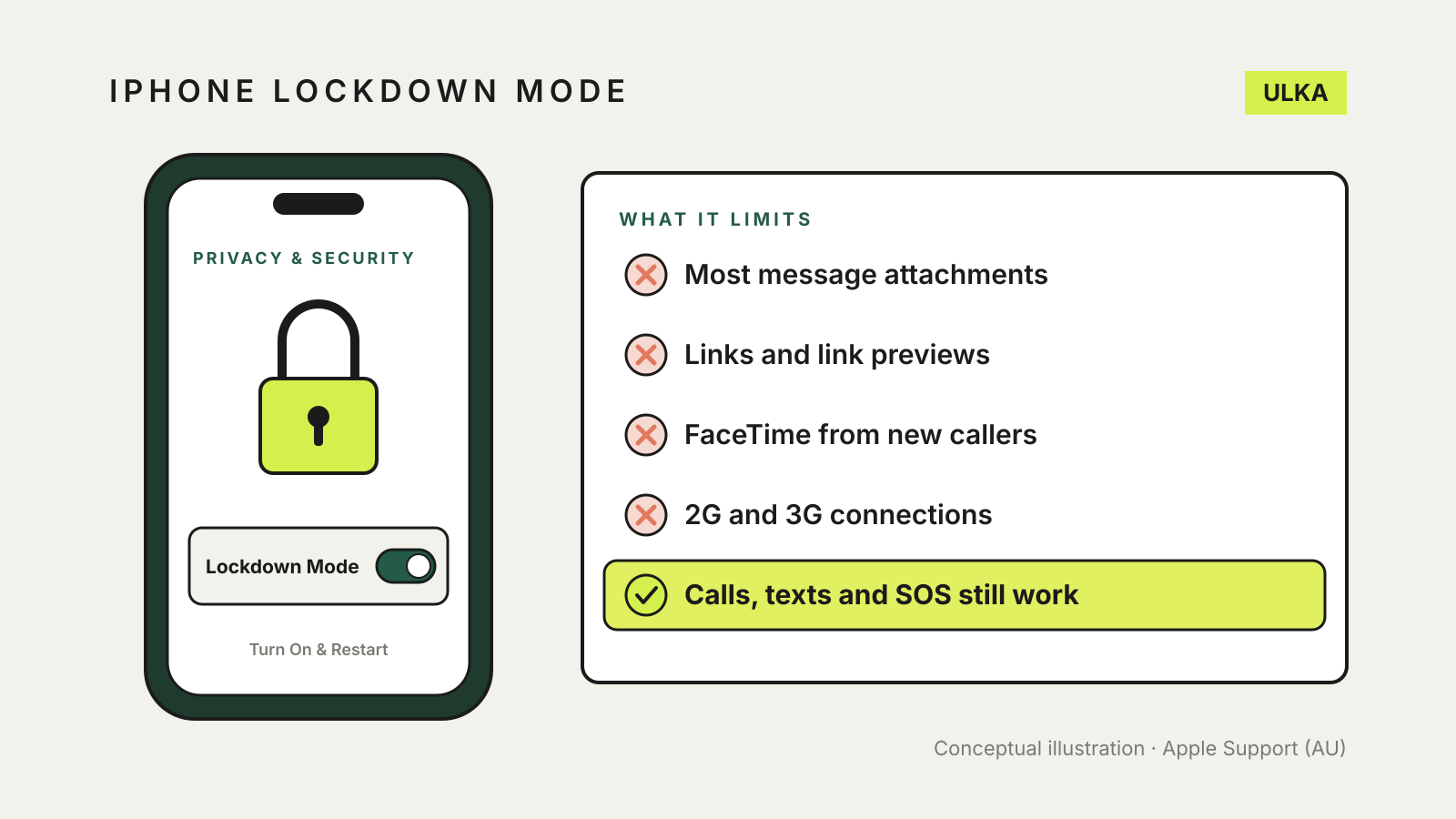
- Messages: most attachment types are blocked, apart from certain images, video and audio. Links and link previews are unavailable.
- Web browsing: certain complex web technologies are blocked, so some websites may load slowly or not work properly. Web fonts may not display and images may be replaced with a missing-image icon.
- FaceTime: incoming calls are blocked unless you have called that person in the past 30 days. SharePlay and Live Photos are unavailable.
- Apple services: incoming invitations, such as to manage a home in the Home app, are blocked unless you invited that person first. Focus may not work as expected and Game Center is disabled.
- Photos: location is removed from photos you share. Shared albums are removed from the Photos app and new invitations are blocked.
- Accessories and computers: your iPhone must be unlocked to connect to an accessory or another computer.
- Wi-Fi and mobile: the iPhone won’t automatically join non-secure Wi-Fi networks, and 2G and 3G support is turned off.
- Configuration profiles: profiles can’t be installed and the device can’t be enrolled in mobile device management.
Phone calls and plain text messages keep working, although incoming calls won’t ring on a paired Apple Watch. Emergency SOS calls are not affected.
How to turn on Lockdown Mode on iPhone
Lockdown Mode is available from iOS 16, with extra protections from iOS 17. Apple recommends updating to the latest software first for the full set of protections.
- Open Settings and tap Privacy & Security.
- Scroll down and tap Lockdown Mode, then tap Turn On Lockdown Mode.
- Tap Turn On Lockdown Mode again.
- Tap Turn On & Restart, then enter your passcode.
After the restart, a banner in Safari shows that Lockdown Mode is on, and you may see notifications when an app or feature is limited.
Lockdown Mode is set separately on each iPhone, iPad and Mac. Turning it on for an iPhone also turns it on for a paired Apple Watch, and Apple prompts you to switch it on for your other supported devices. Apple advises turning it on for all of them for complete protection.
Exclude trusted websites, apps and contacts
Apple warns that every exclusion reduces protection, so exclude only what you trust and need. These options appear only while Lockdown Mode is on.
A website: in Safari, tap the Page Menu button, scroll down to Website Settings and turn off Lockdown Mode for that site. To review the list later, go to Settings > Privacy & Security > Lockdown Mode > Customise Web Sites > Excluded Safari Websites.
An app: go to Settings > Privacy & Security > Lockdown Mode > Customise Web Sites and turn off the app. Only apps you have opened since enabling Lockdown Mode, and that have limited functionality, appear in the list.
A contact: on iOS 27 or later, go to Settings > Privacy & Security > Lockdown Mode > Customise Contacts, tap Add Contact and pick the person. Messaging limits are lifted for that contact. Apple says the limits return automatically if you remove the contact or their phone number or email address changes.
Work phones and managed devices
A device already enrolled in mobile device management before Lockdown Mode was turned on stays managed. But a phone in Lockdown Mode can’t be newly enrolled, and new configuration profiles can’t be installed until you turn Lockdown Mode off. Apple also says administrators cannot switch Lockdown Mode on or off through device management.