To turn off Galaxy AI, open Settings, tap Galaxy AI, then open each feature and switch it off. If you want to keep some AI tools but stop sending data to Samsung’s servers, turn on Process data only on device on the same screen. Samsung warns that some AI features are built into the system and cannot be disabled.
This guide follows Samsung’s support documentation and its Australian Galaxy AI pages, checked on 14 November 2026. Menu names vary by model and One UI version, so look for the closest match on your phone or tablet.
Where the Galaxy AI settings are
Samsung’s Galaxy AI support page says the full list of AI features sits in one menu:
- Open Settings.
- Tap Galaxy AI. On some models you need to tap Advanced features first, then Galaxy AI, Intelligent features or Advanced intelligence.
- Tap a feature to see what it does and the options it offers.
Galaxy AI needs One UI 6.1 or later on a compatible device, and the features listed depend on your model and software version. Samsung also notes that signing in to your Samsung account switches the AI features on, and that without a Samsung and Google account some features are limited or unavailable.
Turn off individual features
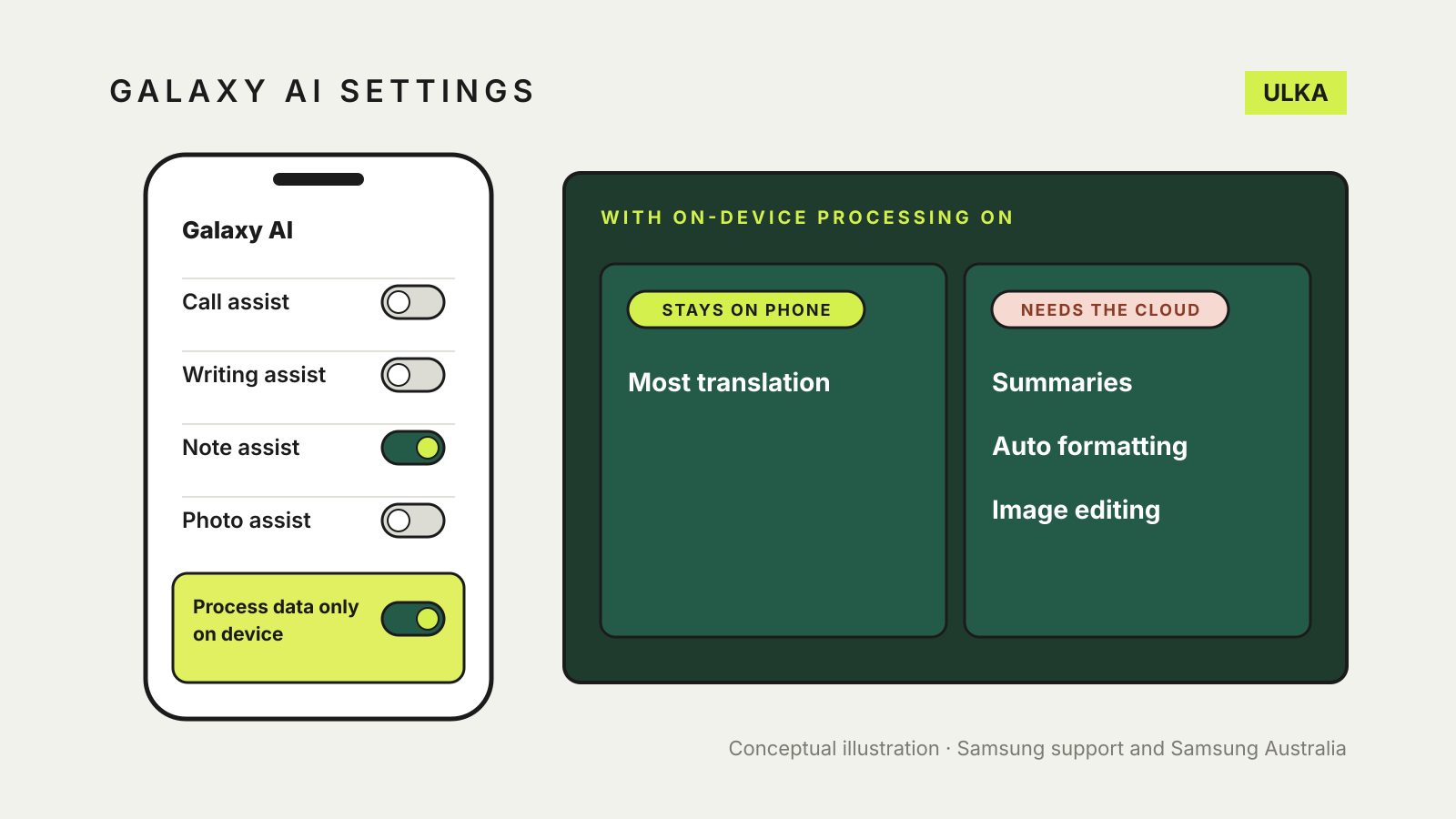
Inside the Galaxy AI menu, each feature, such as Call assist, Writing assist, Note assist or Photo assist, has its own switch. Samsung’s steps are to tap the sub-menu and turn off the switch next to each feature you do not want.
Some AI tools are controlled from the app that uses them instead. Samsung lists the Phone, Samsung Notes, Camera, Gallery, Samsung Messages, Samsung Health and SmartThings apps as places with their own AI switches. Open the app, go to its settings and turn the feature off there.
Samsung recommends restarting the device after you change these settings so they take effect. It also warns that turning AI features off “may affect the performance and functionality of your device”, and that some AI features are integrated into the system and cannot be disabled. So there is no single switch that removes every AI function.
Keep AI on the phone: Process data only on device
If your concern is where your data goes rather than the features themselves, Samsung offers what its support page calls a master switch for cloud processing:
- Open Settings and tap Galaxy AI (or Advanced features, then Advanced intelligence).
- Scroll down and turn on Process data only on device.
Samsung Australia’s Galaxy AI page says this lets advanced intelligence features run locally instead of online, requires a Samsung account login, and “may limit the functionality of certain AI features that rely on online data processing”.
What keeps working depends on the feature. Samsung’s support page says most translations happen on the device, while features such as auto formatting, auto summarising and image editing use the cloud. Its notes on Photo assist say that feature requires an internet connection. Expect features that rely on the cloud, such as summaries and generative photo edits, to be limited once the switch is on.
Personal Data Intelligence
Some Galaxy devices also include Personal Data Intelligence. Samsung says its Personal Data Engine analyses Samsung’s own apps and supported app notifications. According to the footnotes on Samsung Australia’s Galaxy AI page, that engine only runs while the Personal Data Intelligence menu is on, and analysed data is deleted once you turn that menu off. If you are reducing what the phone analyses, check for this item in the Galaxy AI menu too.
What Samsung says about your data
In a September 2025 statement, Samsung Australia said personal data used by Galaxy AI is “never stored long-term or used for AI training”, whether processed on the device or in the cloud. That is Samsung’s own description of its practice; the on-device switch is the setting that gives you direct control over whether data leaves the phone for these features.
Paid and third-party AI features
Samsung’s support page says the basic Galaxy AI features provided by Samsung are free, while Samsung’s enhanced AI features and all third-party AI features have separate terms and may carry fees. A feature from another company may have its own settings and privacy terms outside the Galaxy AI menu, so check that app’s settings as well.
A sensible setup
- Turn off the features you never use, one by one, in the Galaxy AI menu.
- Turn on Process data only on device if you keep translation or writing help but do not want cloud processing.
- Check app-level switches in Notes, Gallery, Phone and Messages.
- Restart the phone, then test the features you rely on.
If you also use an iPhone or Chrome, our guides to turning off Apple Intelligence and Gemini in Chrome cover the equivalent settings. For chatbots, see AI chatbot privacy settings.