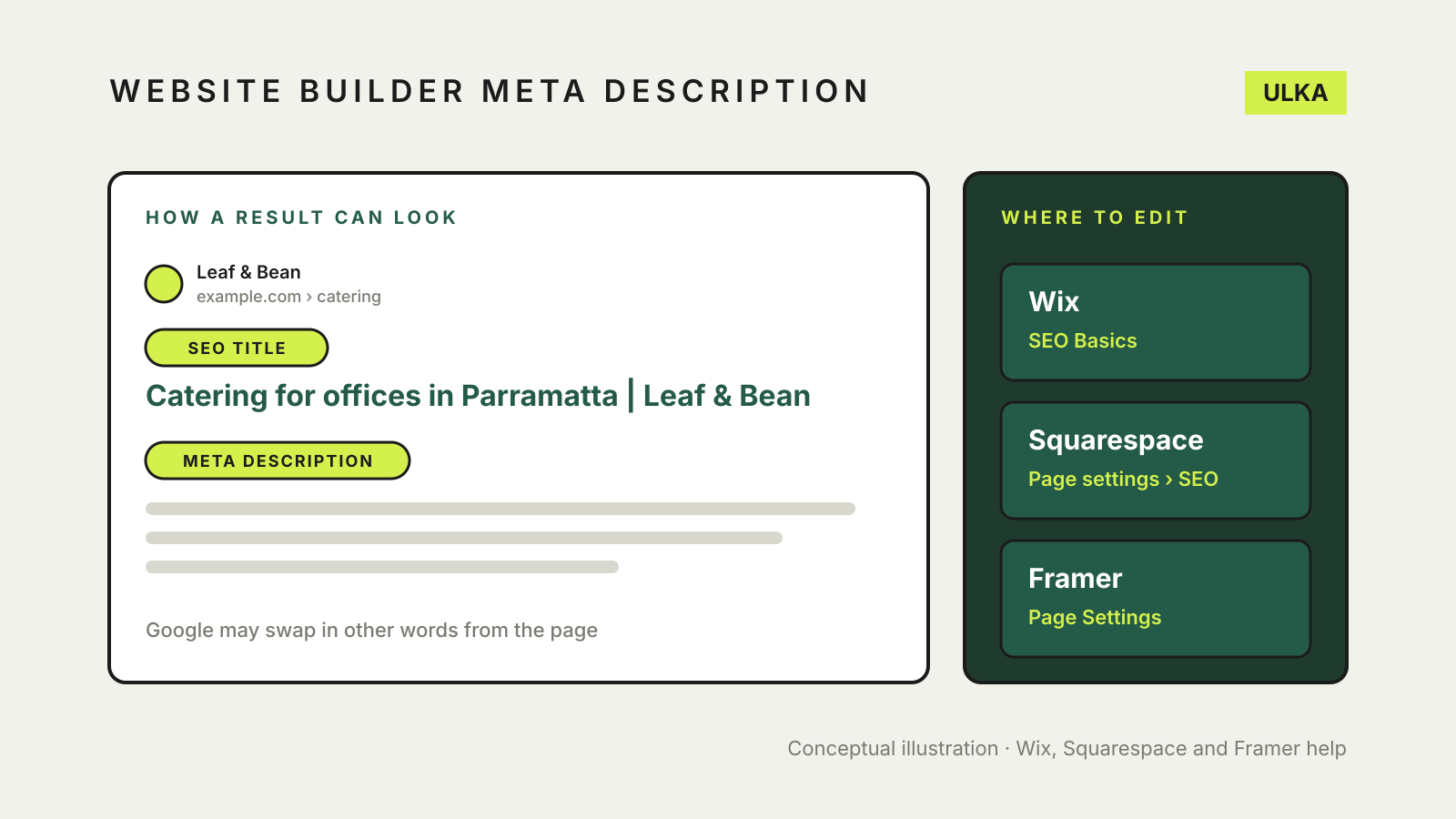
To edit a website builder meta description, open the page’s SEO settings. In the Wix Editor that is Pages & Menu, then the More Actions icon next to the page, then SEO Basics. In Squarespace, open the Pages panel, open the page’s settings and select the SEO tab. In Framer, select the page under Page Settings in your project settings. The SEO title sits in the same place on all three.
Then publish. Search engines pick up the new text the next time they crawl the page, and Google may still show other words from the page when it decides they match a search better.
Where to edit each one
| Wix | Squarespace | Framer | |
|---|---|---|---|
| One page | Pages & Menu > More Actions > SEO Basics | Pages panel > page settings > SEO tab | Project settings > Page Settings > select the page |
| Title field | Title tag (title in search results) | SEO Title | Title |
| Description field | Meta description (description in search results) | SEO Description | Page Description |
| Site-wide default | SEO & GEO dashboard > SEO Settings > page type > Basics & social share | SEO/AI Visibility panel > SEO Settings > Search appearance | Site Settings > Site title and Site description |
| Blog posts, products or CMS items | Edit by page type in SEO Settings, or a variable such as Product Description | The SEO tab on each post, product or event | {{Title}} and {{Description}} variables from CMS fields |
All three apply the change only after you publish (in Framer, save and then re-publish).
Wix
Wix adds a default title tag to every page made of the page name and the site name, for example “Home | My Stunning Website”, and uses the page’s description as the default meta description. To replace them on one page:
- In the editor, click Pages & Menu on the left.
- Click the More Actions icon beside the page and select SEO Basics.
- Fill in Title tag and Meta description.
- Click Publish.
The Preview on Google box at the top of SEO Basics shows roughly how the result will look.
To set a pattern for many pages at once, such as every product or blog post, go to SEO & GEO in the site dashboard, scroll to Tools and settings, open SEO Settings, choose the page type and edit Basics & social share. Variables let each page fill in its own value. The Edit by page type tab lists individual pages so you can check several title tags and descriptions in one place.
Wix suggests keeping title tags under 60 characters and meta descriptions between 50 and 160 characters, and writing a unique one for each page.
Squarespace
Squarespace pages have three titles: the SEO title (browser tabs, search results and social shares), the page title (used when there is no SEO title) and the navigation title (the link in your menu). To set the SEO fields for a page:
- Open the Pages panel and hover over the page.
- Open its settings and click the SEO tab.
- Enter the SEO Title and SEO Description, then click Save.
Blog posts, products and events have their own SEO tab when you edit them. The homepage cannot take an SEO title; use the SEO site description under SEO Settings > Home instead.
The site-wide format decides how titles appear. By default a page shows “Page SEO Title — Site Title”. You can change that in SEO Settings > Search appearance with variables: %s for the site title, %p for the page’s SEO title and %i for a collection item such as a blog post. Keep %p in the Pages format and %i in the Items format, or every page ends up with the same title.
Squarespace’s limits are firm. SEO titles stop at 100 characters and SEO descriptions at 400, with 50 to 300 characters recommended for descriptions and 70 or fewer for titles. Changing a page title does not change its URL slug.
Framer
Framer separates site defaults from page overrides:
- Open Site Settings and enter a Site title and Site description. Every page uses these until you override them.
- For one page, open project settings, select the page under Page Settings and enter its Title and Page Description.
- Click Save and re-publish.
For CMS collection pages, create two Plain Text fields in the collection (for example Title and Description), fill them for each item, then enter {{Title}} and {{Description}} in the CMS page’s settings. You can mix fixed text with a variable, such as {{Title}} – Blog.
Framer also has a Link Preview tool that shows how a page will look in Google and on social and chat services before you publish.
What Google actually shows
Google says it builds snippets mainly from the page content and uses the meta description when that describes the page more accurately. Because the snippet is matched to each search, one page can show different text for different queries. There is no length limit on the meta description itself, but Google truncates the snippet to fit the screen.
That means the meta description is a pitch, not a guarantee. Google recommends a unique description for every page rather than one repeated across the site, and a site-level description only for the homepage and other overview pages.
A made-up example for a café’s catering page:
- Title: Catering for offices in Parramatta | Leaf & Bean
- Meta description: Office catering in Parramatta with set menus for 10 to 80 people, dietary labels on every tray and free delivery before 11 am on weekdays.
Both name the service and place a searcher typed, and the description gives two concrete facts that help someone decide to click. If you cannot back a claim on the page, leave it out of the description too.
Check it after publishing
- Open the live page, view its source and search for
<title>andname="description"to confirm the text published. - Check that no two important pages share the same title or description.
- If you want Google to refresh sooner, request indexing in Search Console. Our guide to adding a website builder site to Google Search Console covers the setup.
Changing a URL slug at the same time is a separate decision. If you do, set up a redirect first: see website builder 301 redirects. For image descriptions, see alt text in a website builder.
Last checked 13 November 2026.
Sources: Wix Help Center, “Adding SEO Title Tags and Meta Descriptions to Your Pages”, “Customizing Your Page’s SEO Settings in the SEO Panel” and “Customizing Your SEO Settings”; Squarespace Help Center, “Adding SEO descriptions” (updated 10 September 2026), “Editing page titles” and “Change how page titles appear in search engines, browser tabs, and social shares”; Framer Help, “How to update page titles, descriptions, and social images”; Google Search Central, “Control your snippets in search results”. All read 13 November 2026.