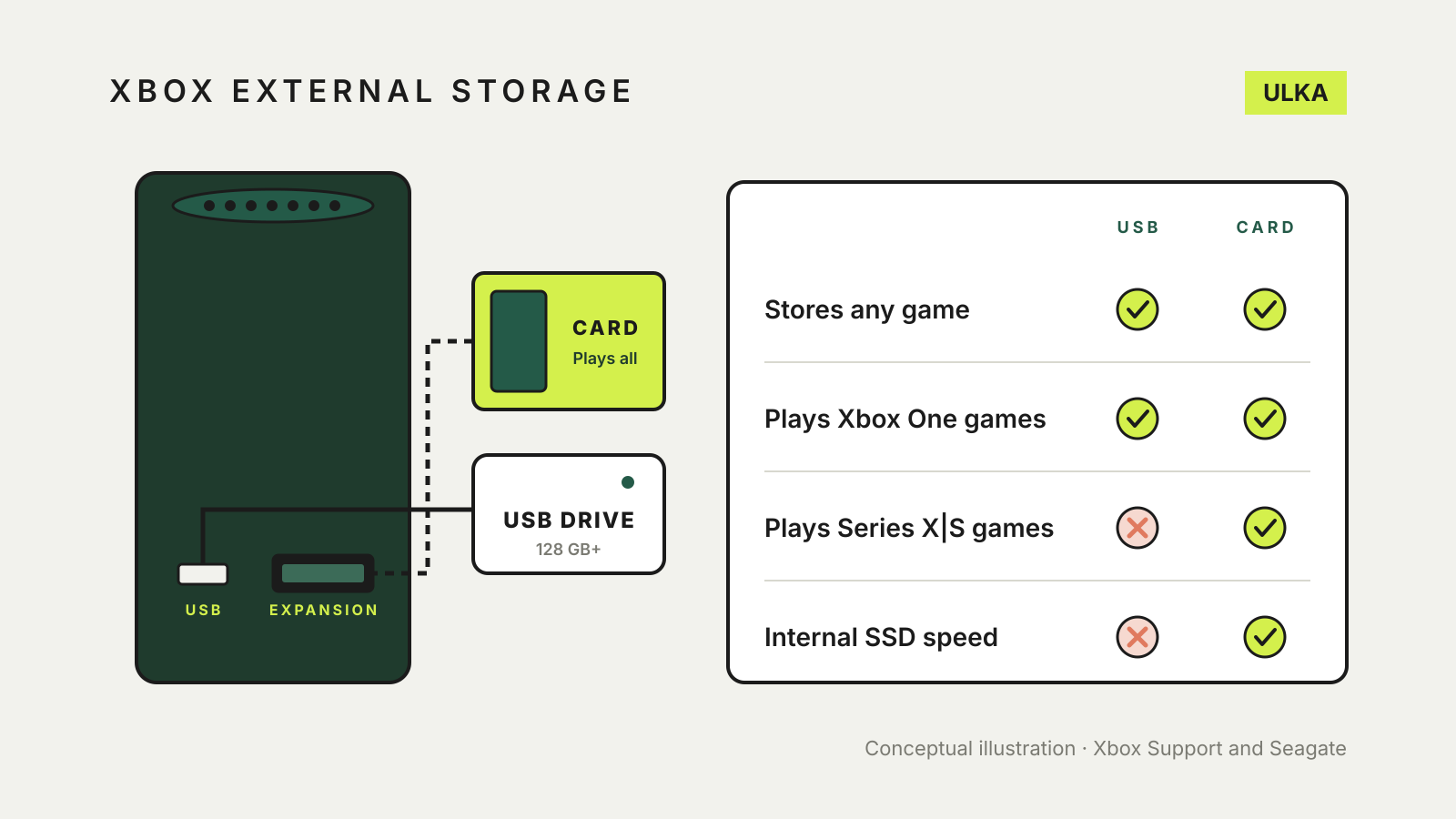
Xbox external storage comes in two kinds, and they do different jobs on an Xbox Series X or Series S. A USB hard drive or SSD can store any Xbox game and can play Xbox One, Xbox 360 and original Xbox games, but games optimised for Xbox Series X|S must be moved back before you can play them. A Storage Expansion Card plays everything, like the console’s own SSD.
So a USB drive works as a cheap archive and a home for older games, while the card adds space you can play current games from. This guide covers the drive requirements, setting a drive up, moving games and the mistakes that cost time. Xbox, Seagate and 2K support pages were checked on 6 November 2026.
USB drive or Storage Expansion Card
Xbox’s install guide states the key rule: games optimised for Xbox Series X|S must be installed on the console’s internal storage or a Storage Expansion Card to be played.
Microsoft’s Xbox Wire storage primer from the consoles’ launch sets out the difference:
| What it does | USB hard drive or SSD | Storage Expansion Card |
|---|---|---|
| Stores any Xbox game | Yes | Yes |
| Plays Xbox One, Xbox 360 and original Xbox games | Yes | Yes |
| Plays games optimised for Xbox Series X|S | No, move them back first | Yes |
| Matches the internal SSD’s speed | No | Yes |
| Where it connects | A USB port | The Storage Expansion port on the back |
The same primer says an existing USB drive from an Xbox One can be plugged into a Series X|S with its games available straight away. Seagate’s card FAQ adds that the card works only in Xbox Series X|S consoles, not in an Xbox One or a PC.
What a USB drive needs
Seagate’s Xbox USB drive guide lists two requirements for using a drive for games:
- a capacity of 128 GB or more
- a USB 3.0 or later connection.
Xbox Wire describes the supported drives as USB 3.1 storage. Seagate says a device that does not meet the requirements will be used for media only, so it will not appear as a place to install games.
Plug the drive straight into the console. Seagate’s troubleshooting steps include removing a USB hub and trying a different port if the drive is not detected.
Set up the drive
Formatting erases the drive. Xbox’s external storage troubleshooting page warns that the console will reformat it, so copy off anything you want to keep first, on a PC.
- With the console on, plug the drive into a USB port.
- When the prompt appears, choose to format the drive for games and apps, give it a name and confirm.
- If you dismissed the prompt, unplug the drive and plug it back in. Seagate notes that cancelling the format prompt can stop the drive being detected until you reconnect it.
Choose where new games install
By default, new games install to internal storage. 2K’s console troubleshooting guide gives the route for changing this: press the Xbox button, then Profile & system > Settings > System > Storage devices > Change install locations.
For a Storage Expansion Card, Seagate’s installation guide says the console formats the card automatically when you power on, but games will not install to the card by default. Use the same setting if you want them to.
A sensible split is to keep Xbox Series X|S optimised games on internal storage or the card and send older games to the USB drive, since those can run from it.
Move or copy games
Moving a game you are not playing saves downloading it again later.
- Go to Profile & system > Settings > System > Storage devices.
- Select the drive that holds the game and choose View contents, then highlight the game and press the Menu button.
- Choose Move or copy, pick the destination and confirm.
Seagate’s FAQ describes the same idea: select each storage volume to see the installed titles and move them between internal and external storage.
To play an optimised game from your USB archive, move it back to internal storage or the card first. Moving takes time for large games, so do it before you sit down to play.
Taking a drive or card to another console
Both a USB drive and a card can move between consoles. Seagate’s FAQ says you plug the card into the other console, then sign in with your Xbox profile or insert the game disc. Xbox Wire’s primer notes that disc games still need the disc inserted, because the disc is the licence.
If you are moving to a new Xbox on the same home network, network transfer is an alternative. Xbox’s network transfer help lists it under Profile & system > Settings > System > Backup & transfer > Network transfer, and says both consoles must be on the same local network, with the host console on and set to Sleep.
Common problems
- The drive only offers media storage. Check it against the 128 GB and USB 3.0 requirements.
- The drive is not detected. Reconnect it with the console on, try another port and remove any hub, as Seagate’s troubleshooting steps suggest.
- A game will not start from the USB drive. It is probably optimised for Xbox Series X|S. Move it to internal storage or the card.
- The card is not shown. Seagate suggests removing it, waiting 30 seconds and reinserting it; if that fails, restart the console and try again.
If you also play on PlayStation, our guide to PS5 USB extended storage covers Sony’s version of the same rules, and console parental controls covers family settings on Xbox, PlayStation and Switch.
Questions
Can you play Xbox Series X games from an external hard drive?
Not games optimised for Xbox Series X|S. Xbox says they must be installed on internal storage or a Storage Expansion Card to play. Xbox One and older games can run from the USB drive.
What size external drive works with Xbox?
Seagate lists 128 GB or larger, connected over USB 3.0 or later. Smaller or slower drives are used for media only.
Does formatting a drive for Xbox erase it?
Yes. Xbox warns that the console will reformat the drive, so back up anything on it first.
Does a Storage Expansion Card work in an Xbox One?
No. Seagate says the card works only with Xbox Series X|S consoles.
Sources
Checked on 6 November 2026:
- Xbox Support: How to install games and apps on an Xbox console
- Xbox Support: Troubleshoot external storage detection on Xbox
- Xbox Support: Troubleshoot copying games and apps using network transfer
- Xbox Wire: A primer on the storage options for Xbox Series X and Xbox Series S (24 September 2020)
- Seagate: Using an external USB drive with an Xbox Series X or S
- Seagate: Storage Expansion Card for Xbox Series X|S FAQ
- Seagate: Storage Expansion Card installation guide
- 2K Support: Console general troubleshooting