Scamwatch issued a warning on 20 November 2026 about a fake Microsoft pop-up scam: full-screen Windows or Defender-branded alerts that tell you your device is infected and urge you to call a “support” number. Do not call it. Close the browser, then check your device through a channel you find yourself. Scamwatch says the aim is to get remote access to your device and your money.
What the alert describes
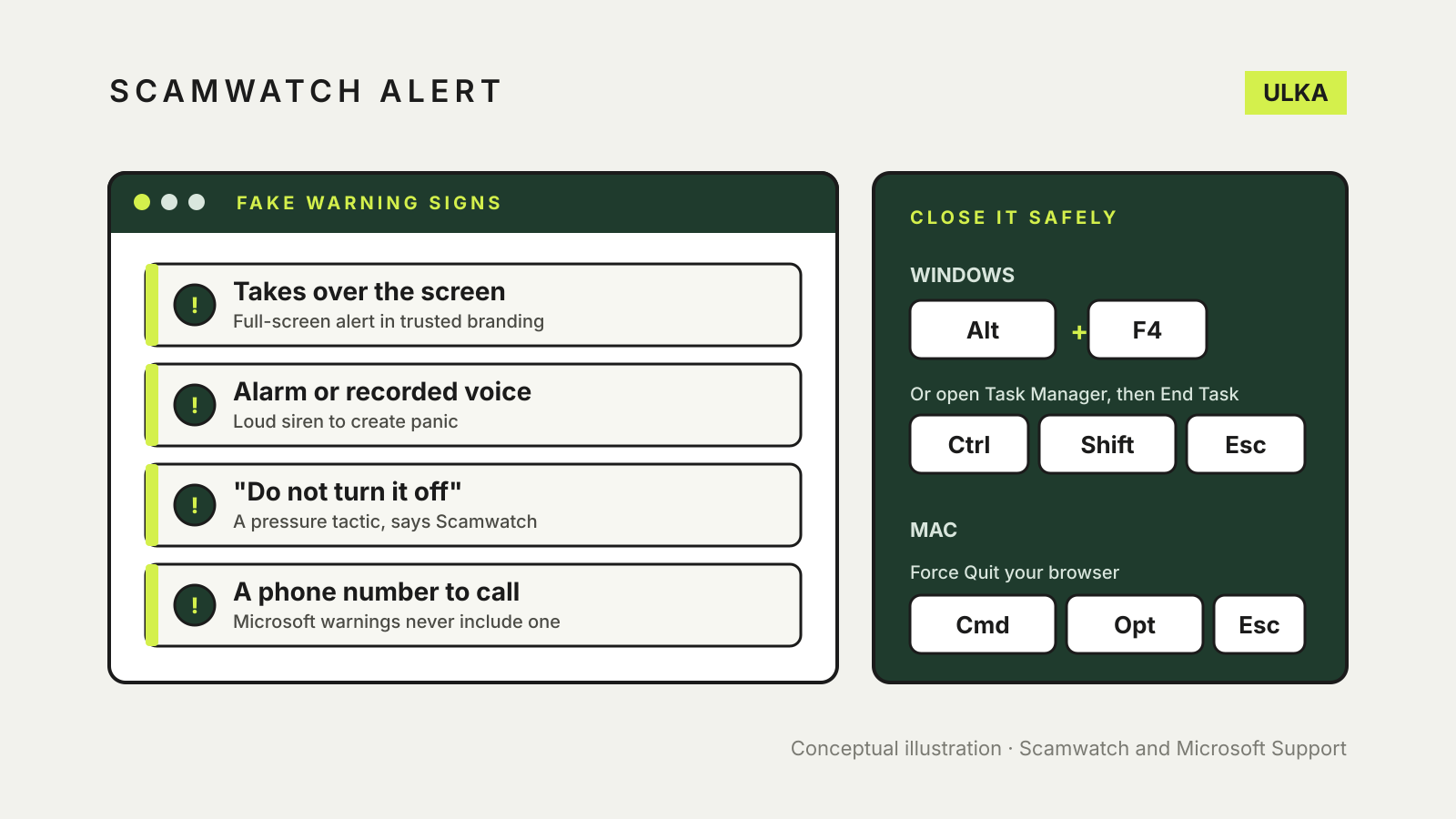
The pop-up may take over the screen, play a loud alarm or recorded voice, claim the device has been hacked or has a virus such as a trojan horse, and tell you not to turn the computer off. Scamwatch says these pop-ups often appear after people click links in ads, fake news articles, fake social media notifications, free online games or paid search results.
If you call the number, the scammer poses as Microsoft support and offers a fix. Scamwatch says they may then:
- ask you to install remote access or screen-sharing software, naming AnyDesk, UltraViewer, Supremo, Quick Assist and ScreenConnect as examples;
- give fake case numbers or employee IDs to make the story seem real;
- ask for banking details, balances or identity documents;
- pressure you to pay for security software, transfer money, buy gift cards, withdraw cash or send cryptocurrency;
- in some cases, ask you to hand over cash or bank cards for collection from your home.
Scamwatch says anyone with a computer, tablet or phone can be targeted, and that people may be at greater risk if they are rushed, distracted or less confident with technology.
How to close the pop-up
Scamwatch gives these steps when the window takes over the whole screen:
- Windows: press Alt+F4 to close the active browser window. If that fails, press Ctrl+Shift+Escape to open Task Manager, select your browser and choose End Task.
- Mac: press Command+Option+Escape to open Force Quit Applications, select your browser and choose Force Quit.
It also suggests clearing your browser cookies and cache, blocking unwanted notification permissions and removing any unknown sites that are allowed to send notifications. The steps differ between Edge, Chrome, Firefox and Safari.
What Microsoft says about its own warnings
Microsoft’s support page on scams says its error and warning messages never include a phone number, that it does not make unsolicited calls offering technical support, and that it will never ask you to pay for support with cryptocurrency or gift cards. If you are worried there is a real problem, it advises contacting support through a channel you found independently.
If you already called or gave access
Scamwatch’s advice is to call your bank immediately to protect your accounts. If your identity information was exposed, it points to IDCARE on 1800 595 160, and it asks people to report the scam through Scamwatch.
Microsoft’s list adds practical steps: remove any app the scammer asked you to install, run a full scan with Windows Security and install available security updates, change any password you shared, and contact your card provider if you paid. It says to consider resetting the device if the scammer had remote access, particularly if suspicious messages continue.
Our guide to what to do if your computer has a virus covers the clean-up in more detail, including when to run a Microsoft Defender Offline scan. For scams that arrive by message, see how to spot scam texts and calls in Australia.