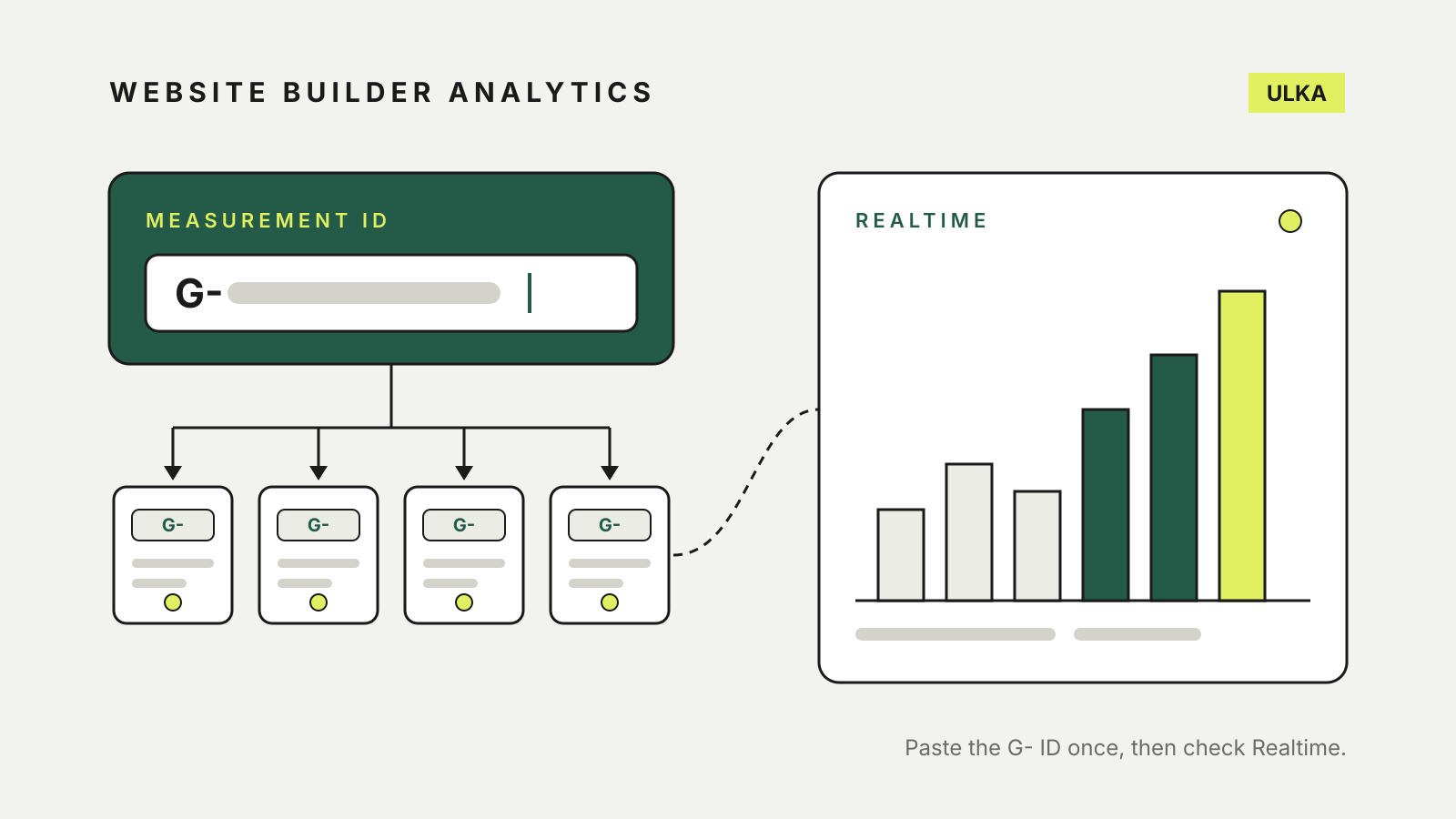
To add Google Analytics to Wix, Squarespace, Framer or Hostinger, you don’t need to touch any code. Each of these builders has a field for one short ID from Google, and the builder adds the tracking script to every page for you. The work is in finding the right ID, putting it in the right place, and checking that data is actually arriving.
This guide follows the help pages published by Google, Wix, Squarespace, Framer and Hostinger, checked on 24 October 2026. Builder menus are renamed from time to time, so follow the labels in your own dashboard if they differ.
What you need before you start
A Google Analytics 4 property. If you don’t have one, Google’s setup guide walks through it: go to analytics.google.com, create an account, then a property with your reporting time zone and currency, and finally a Web data stream with your site’s address. Pick your own time zone, such as Sydney or Perth; Google notes that the time zone sets the day boundary for your reports.
The measurement ID, not the full tag. Google describes the measurement ID as a code that starts with G- followed by letters and numbers, such as G-PSW1MY7HB4. To find it, open Admin, choose Data streams under Data collection and modification, select the Web tab and click your stream. The ID is in the first row of the stream details. Google’s list of platforms with native support includes Wix and Squarespace, which means a G- ID is all they need.
The right plan on the builder side. Wix says you need a Premium site and a connected domain to use Google Analytics. If your domain is not yet connected, our guide to connecting a custom domain covers the DNS side.
Where to paste the ID on each builder
| Builder | Where the field is | Extra step |
|---|---|---|
| Wix | Dashboard, Marketing Integrations, Google Tag, Connect | Optional IP Anonymization checkbox |
| Squarespace | Developer tools, External API keys | Google Analytics account number field |
| Framer | Site Settings, Google Analytics Measurement ID | Publish the site again |
| Hostinger | Editor, Integrations settings, Google Analytics | Update the website |
Wix. In the site dashboard, go to Marketing Integrations, click Connect under Google Tag, then Add Google Tag ID. Paste the measurement ID with no extra spaces in front of it and click Save. Wix offers an optional IP Anonymization checkbox to hide visitors’ IP addresses from Google.
Wix also recommends two changes when you create the web stream in Google Analytics: under the page views settings, clear the Page changes based on browser history events checkbox, and switch off Site search. Make those changes before you click Create stream.
Squarespace. Squarespace’s built-in integration works without script code. Open the Developer tools panel, click External API keys, enter the measurement ID in the Google Analytics account number field and click Save. If an older Google Analytics ID is still in that field, replace it with the G- ID. Squarespace says statistics can take up to 24 hours to appear.
Framer. Framer’s help page asks you to open Site Settings in your project, paste the ID into the field labelled Google Analytics Measurement ID, save, and publish the site. The change is not live until you publish.
Hostinger. For sites made in Hostinger’s builder, open the website’s integrations settings in the editor, find the Google Analytics field, insert the measurement ID, save, and update the website. Hostinger’s instructions add that tracking scripts need the site’s cookie banner to be enabled to work properly, and that first reports arrive about 24 hours after setup.
Whichever builder you use, add the ID in one place only. Google advises against putting more than one Google tag on a page, so don’t also paste the full tag into the builder’s custom code once the built-in field is filled.
Check that data is arriving
You don’t have to wait a day to know whether it worked. Google says data collection can take up to 30 minutes to start, after which the Realtime report shows live visits. Open your published site in one browser tab and the Realtime report in another; Hostinger describes seeing at least one visitor, yourself, as the sign that the connection works.
If nothing shows up after that, go back through the obvious causes: a typo in the ID, a site that has not been published or updated since you saved the setting, or a cookie banner you have not accepted on your own visit.
Cookie banners and why your numbers drop
Turning on a cookie banner changes what Google Analytics sees. Wix says that when a site uses a cookie banner, Google Analytics gathers data only after a visitor accepts the relevant cookies, so a drop in numbers is normal. Squarespace lets you connect its banner to Google’s consent mode: switch on the cookie banner in the Cookies and Data Privacy panel, then the Manage cookies button, so that non-essential cookies such as Google Analytics are not set until a visitor agrees.
Expect your builder’s own statistics and Google Analytics to disagree. Squarespace says the platforms calculate results differently, and that visitor numbers in its own analytics can be much higher than in Google Analytics once a cookie banner limits tracking.
Keep your own visits out of the reports
Squarespace notes that Google Analytics counts your own previews while you are logged in, while Squarespace’s statistics do not. Google’s answer is to filter out internal traffic: in your web stream, open Configure tag settings, choose Define internal traffic and add your IP address, then create a data filter. Google warns that an exclude filter is permanent: data it removes is never processed, so double-check the IP address before you apply it.
Update your privacy policy
Google’s Analytics terms require a site that uses the service to post a privacy policy that gives notice of the cookies or similar technology used to collect data, and to disclose the use of Google Analytics and how it collects and processes data. Google says one way to do that is a prominent link to its page on how Google uses information from sites that use its services.
It is also worth checking how long Google keeps detailed data. In a standard property you can set data retention for user-level data to 2 or 14 months. The setting affects explorations and funnel reports, not the standard aggregated reports.
Once analytics is running, pair it with Search Console, which shows the searches that bring people to your pages; our guide to adding a website to Google Search Console covers each builder. If you are still choosing a platform, see our website builder comparison.