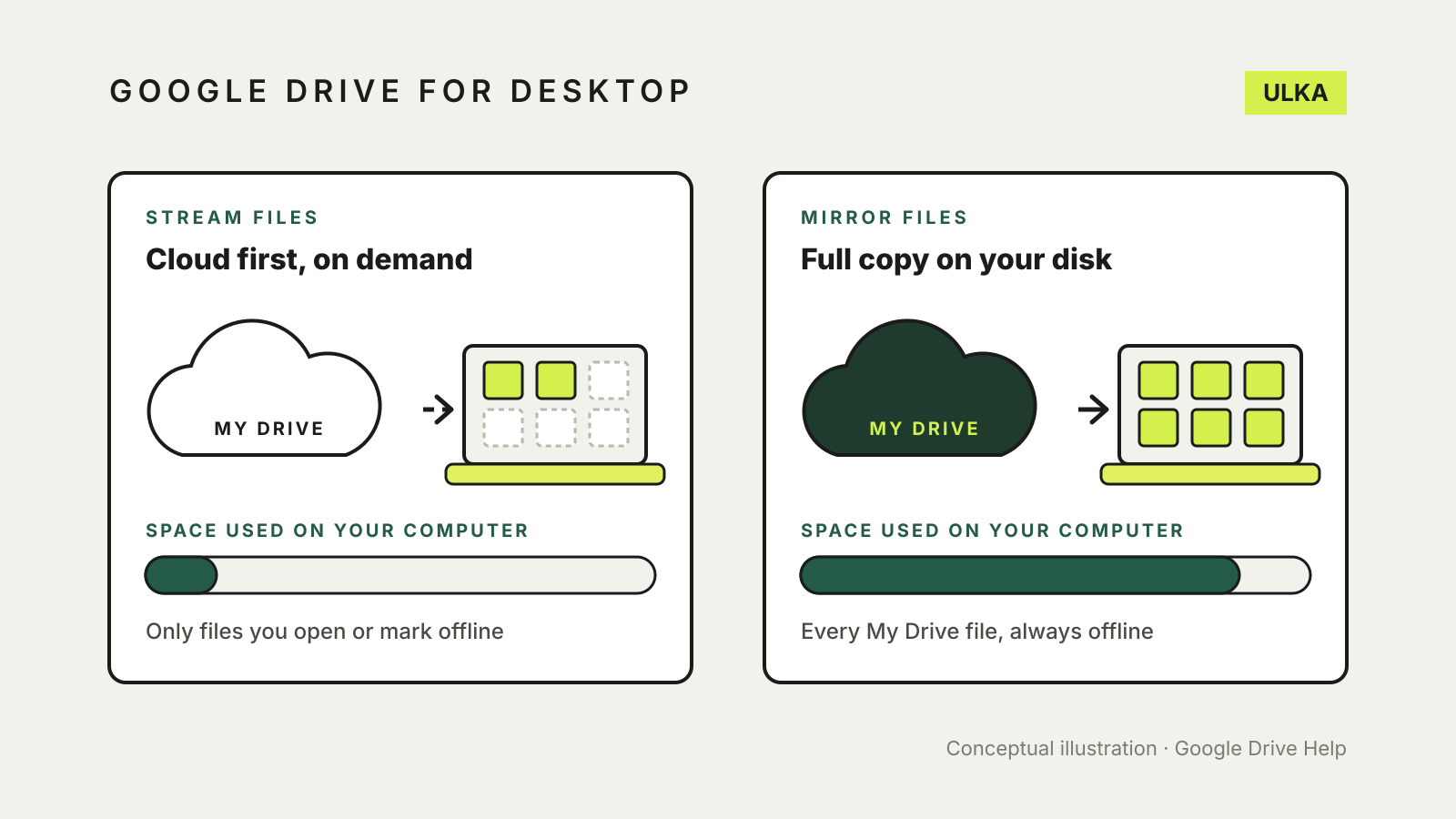
Google Drive for desktop gives you two ways to put My Drive on your computer. Streaming keeps your files in the cloud and downloads them only when you open them or mark them for offline use, so it uses very little disk space. Mirroring keeps a full copy of My Drive on your computer as well as in the cloud, so every file is available offline but takes up local storage. You choose between them in Drive for desktop under Settings > Preferences > Folders from Drive.
This guide explains what each mode does to your disk, offline access and everyday apps, how to switch safely, and what changes on a Mac. It follows Google’s Drive Help pages, checked on 7 November 2026. Menu labels can change between app versions, so look for the closest match if yours differs.
Streaming and mirroring compared
Google’s stream and mirror help page sets out the differences. Changes you make on one device appear everywhere in both modes, and in both cases you can browse all your Drive files and folders from File Explorer on Windows or Finder on macOS.
| Stream files | Mirror files | |
|---|---|---|
| Where files live | In the cloud; local space is used only for files you open, recent and frequently used files, and items you make available offline | In the cloud and as a full copy on your computer |
| Offline access | Only for items you mark Available offline | Every file, by default |
| When Drive for desktop is closed | Files can only be accessed while the app is running | Files open like any other local file |
| Google storage | Files you own still count towards your Google storage | Does not change your Google storage limit |
| Drives it supports | My Drive, shared drives, other computers and backed-up USB devices | My Drive and local folders only |
Two consequences are easy to miss. Shared drives can only be streamed, so a mirrored My Drive still leaves shared drives as streamed content. And neither mode frees up Google storage: the space indicator in Drive for desktop shows the room left on your computer, not in your Google Account, as Google notes on its Drive for desktop page.
Which mode suits you
Google says most people with a reliable internet connection choose streaming. It suits a laptop with a small SSD, a large Drive that would not fit locally, or a computer where you only touch a few folders.
Mirroring suits you if you often work without a connection, need files available when Drive for desktop is not running, or use demanding apps. Google says applications that do extensive writing, video editing or high-resolution photo editing are faster with mirrored files, and that some applications use a combination of APIs that make files difficult to stream.
Google’s advanced guide adds a resilience point. With streaming, unsynced changes sit in a local cache and can be lost if that cache is cleared or corrupted. With mirroring, local files stay on your computer even if the app crashes. If you edit important files offline, let them finish uploading before you clear space or sign out.
How to switch between streaming and mirroring
Before you start, make sure your files have finished syncing. Google warns that moving or deleting folders before sync completes can cause data loss.
From mirroring to streaming
- Open Drive for desktop and check that local files have finished syncing to the cloud.
- Select Settings > Preferences.
- On the left, select Folders from Drive.
- Under My Drive syncing options, select Stream files.
- Close Drive for desktop.
- Delete the old mirrored folder.
Your files move to a virtual drive, and the old mirrored folder stops syncing. On Windows, Google says you must quit Drive for desktop before removing that folder.
From streaming to mirroring
- Open Drive for desktop and select Settings > Preferences.
- On the left, select Folders from Drive.
- Under My Drive syncing options, select Mirror files.
- Close Drive for desktop.
My Drive then downloads to the folder you chose, so check you have enough free disk space first. If that folder already holds files, Google says Drive for desktop tries not to copy ones already in the cloud, keeps both versions where content differs, and uploads anything not yet in the cloud.
Keep chosen files offline while streaming
You do not have to mirror everything to work offline. Google’s offline files page explains how to keep selected items on your computer:
- Open the Google Drive folder in File Explorer or Finder.
- Select the files or folders you want.
- Right-click and choose Offline access > Available offline (on a Mac, Available offline).
A green tick appears next to items saved offline. Marking a folder offline also applies to every file inside it, including new ones added later, so a large folder can fill a small drive quickly. You can see everything marked offline from the Drive for desktop menu under Settings > Offline files.
Two limits apply. Google Docs, Sheets and Slides are not covered by this option: you make them available offline in Drive on the web. And if you disconnect your Google account from Drive for desktop, offline streamed files are removed, while mirrored files remain.
What is different on a Mac
On macOS 12.1 and later, Google says streaming uses Apple’s File Provider technology, as explained on its macOS help page. If Drive for desktop’s settings show Folder location is controlled by macOS, File Provider is in use. That changes some behaviour:
- You cannot change the streaming location, and macOS manages the cache size.
- Dragging an item out of the Google Drive folder in Finder moves it, and the cloud copy goes to the trash. Hold Option while dragging to copy instead.
- Spotlight searches only part of your files, including downloaded ones. Use the Drive for desktop search or the Drive website to search everything.
- When sync is paused, files that have not been downloaded are not accessible.
The drag-and-drop point matters most. If you are used to copying files out of Drive on Windows, the same action on a Mac moves them.
For other ways to free up space without losing access, see our guide to OneDrive Files On-Demand, which works on a similar on-demand principle. If something does go missing, our guide to recovering deleted cloud files covers Google Drive’s Bin. A sync service is not a backup on its own; our cloud storage and backup guide explains the difference.