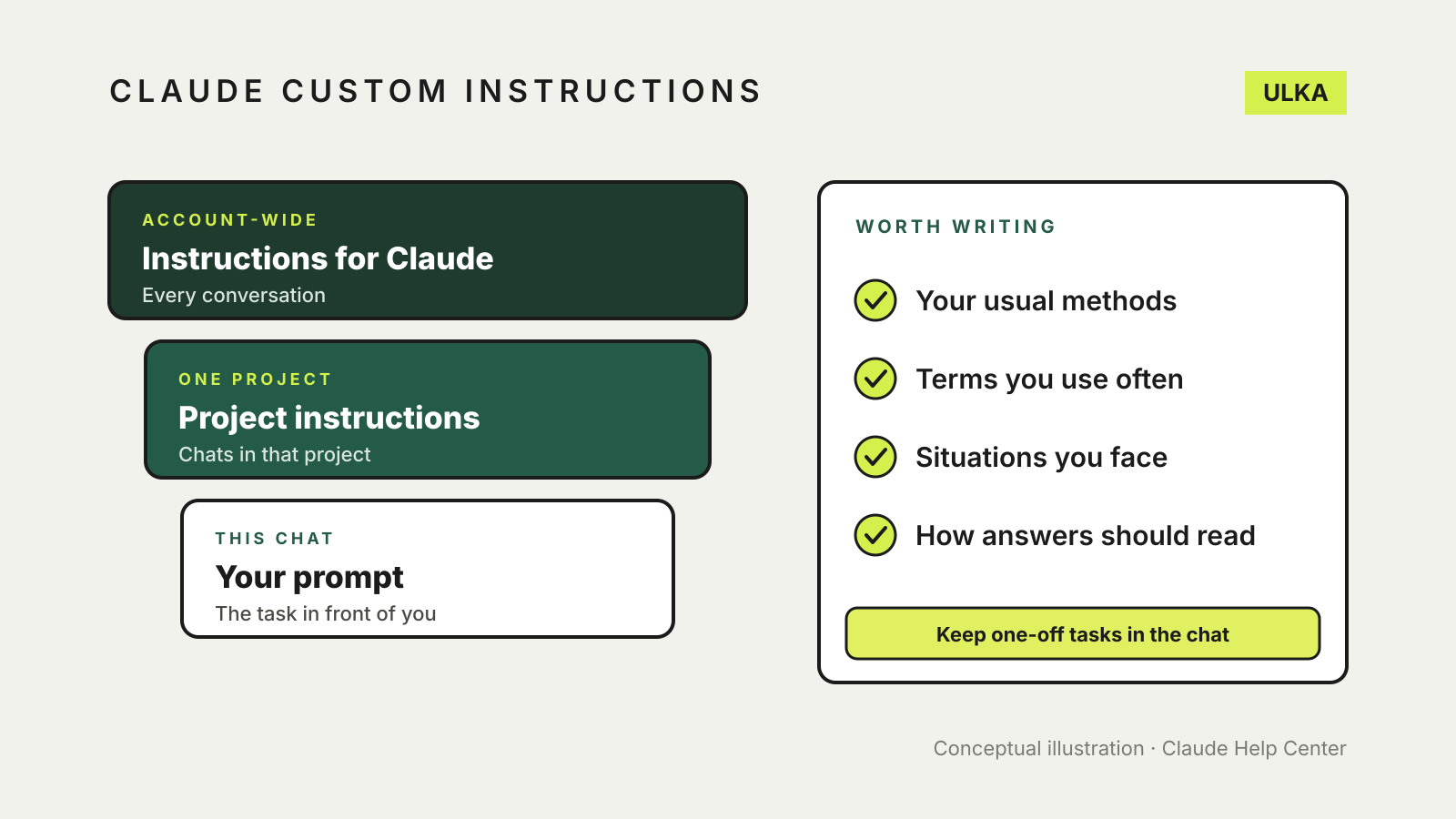
Claude custom instructions are called Instructions for Claude in Anthropic’s settings. They are account-wide: whatever you write there applies to all your conversations. To set them on the web, click your initials in the lower-left corner, open Settings, select Your Claude (or Account in the older layout), and type into the Instructions field. For guidance that should apply to one piece of work only, use project instructions instead.
This guide covers where each setting lives, what is worth writing, how instructions differ from memory, and when a project is the better place. It follows Anthropic’s Claude Help Center pages, checked on 7 November 2026. Anthropic is changing parts of its settings layout, so look for the closest label if yours differs.
Three places to tell Claude how to work
Anthropic’s personalisation help page describes separate layers, each with its own scope:
| Setting | Where it applies | Use it for |
|---|---|---|
| Instructions for Claude | All your conversations | Stable preferences: how you like answers, terms you use, your usual situation |
| Project instructions | Only chats inside that project | Context and rules for one workflow or set of tasks |
| Skills | When you add or activate them | Tone, format or specialised behaviour for particular tasks |
Anthropic also says that if you used global instructions in Claude Cowork, they become part of Instructions for Claude once you have the new Claude experience, so it is worth opening the setting to check what is there.
What to write in Instructions for Claude
Anthropic suggests describing four kinds of detail:
- your preferred approaches or methods
- common terms or concepts you use
- typical scenarios you encounter
- general communication instructions
Because the text applies to every conversation, keep it to things that are true most of the time. A one-off task belongs in the chat itself. Here is an illustrative example. It is our own wording, not Anthropic’s:
I manage bookings and accounts for a small Australian physiotherapy clinic. Use Australian English and A$ for prices. Put the answer first, then the reasoning. Use numbered steps for instructions. If a request could mean two things, ask me which before you start.
That covers role, regular context, format and a guardrail without personal detail Claude does not need. Leave out passwords, health details about other people, client names and anything else you would not want stored with your account. If you need help phrasing individual requests, our guide to writing AI prompts goes through it.
When to use project instructions instead
Projects suit work that needs its own background, such as a grant application, a renovation or a client’s brand rules. Anthropic’s projects help page says projects are available to all users, and free accounts can create up to five.
To add project instructions:
- Open the project, or create one from Projects with + New Project.
- Select Set project instructions.
- Describe how Claude should behave and respond, then select Save instructions.
Anthropic says Claude uses these instructions for every chat in that project. It also notes that the project’s name and description are not visible to Claude, so put anything Claude must know into the instructions or the project knowledge, not the description. Context is not shared between chats in a project unless it is added to the project knowledge.
On Team and Enterprise plans, a project can be shared. People with Can view access can see the project’s instructions and knowledge, and people with Can edit access can change them. Write project instructions on the assumption that colleagues will read them.
Our comparison of ChatGPT Projects, Claude Projects and Gemini Gems shows how the three services handle this kind of workspace.
Instructions are not memory
Instructions are text you write and control directly. Memory is context Claude saves from your chats. Anthropic’s memory help page says memory is on by default for Free, Pro, Max and Ultra plans on the web, desktop and mobile apps, and that on Team and Enterprise plans the owners control whether it is available.
The practical differences:
- Review and edit. Memory is listed as topics under Settings > Your Claude, next to Your memory, where you can read, edit or delete each one. Instructions are a single field you edit yourself.
- Projects. Each project has its own memory. Turn off Use account memory on a project’s page to keep its memory separate from your other chats.
- One chat without memory. Open a new chat, select the + menu and turn off Memory before you send the first message.
- Pausing or resetting. Anthropic offers Pause memory, which keeps saved memories but stops using or adding to them, and Reset memory, which permanently deletes all memories, including project memories.
If a preference matters every time, such as Australian spelling, put it in your instructions rather than hoping memory picks it up. For a wider look at how the main assistants remember things, see our guide to ChatGPT, Claude and Gemini memory. If you also use ChatGPT, our guide to ChatGPT custom instructions covers its equivalent setting.
Check the result
After saving, start a new chat and ask something routine, such as a short email or a set of steps. Check whether the answer follows your format and spelling. If it does not, make the instruction more specific: “use numbered steps for instructions” is easier to follow than “be clear”. Review the field every few months, since a role or project change can make old instructions unhelpful.
For the data side of using Claude, including training and history settings, see our AI chatbot privacy settings guide.