Smart App Control is a Windows 11 feature in Windows Security that blocks apps Microsoft’s cloud service judges malicious or potentially unwanted, and apps it cannot vouch for that also lack a valid signature. To check it, open Windows Security > App & browser control > Smart App Control settings. It shows one of three states: Evaluation, On or Off. Until recently, switching it off was permanent without a reset; Microsoft’s FAQ now says recent Windows updates let you turn it back on without a clean installation.
This guide explains what each state means, what Smart App Control blocks, why the switch is sometimes missing, and when it is reasonable to turn it off. It follows Microsoft’s support and Learn pages, checked on 10 November 2026.
How Smart App Control decides
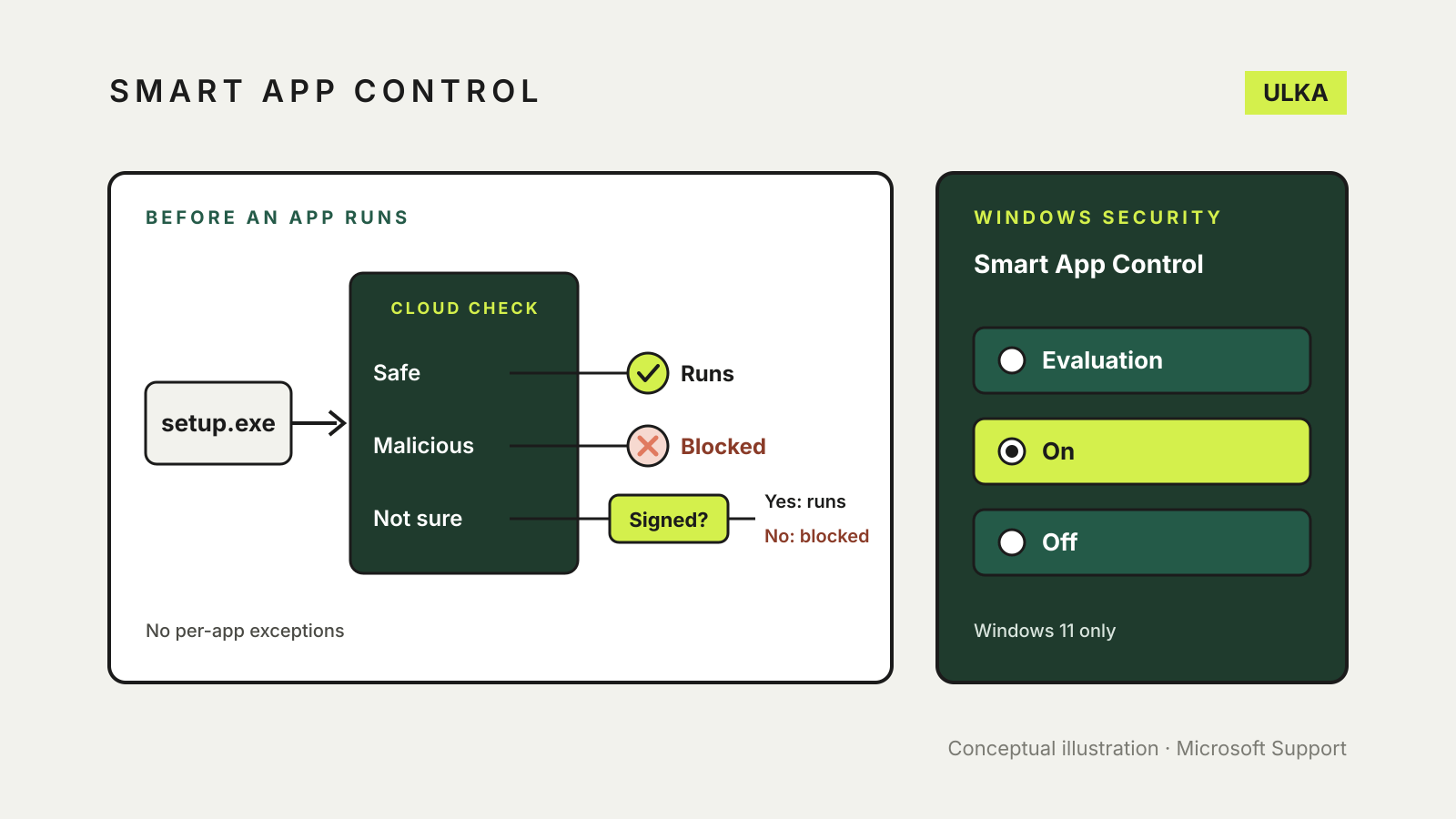
Microsoft describes a two-step check each time you run an app:
- Microsoft’s cloud-powered security service tries to make a confident prediction about the app. If it predicts the app is safe, it runs. If it predicts the app is malicious or potentially unwanted, it is blocked.
- If the service cannot make a confident prediction, Smart App Control looks for a valid digital signature. A validly signed app runs. An unsigned app, or one with an invalid signature, is treated as untrusted and blocked.
“Potentially unwanted” covers apps that, in Microsoft’s words, may slow the device, show unexpected ads or offer extra software you did not want. Smart App Control is aimed at that grey zone as well as outright malware.
It works alongside Microsoft Defender Antivirus or a third-party antivirus product and does not replace either one. Its job is deciding whether an app is allowed to run.
The three states
| State | What Microsoft says happens |
|---|---|
| Evaluation | Windows watches how you use the PC to judge whether Smart App Control suits you. Nothing is blocked. If you are a good candidate it turns on by itself; if not, it turns off. |
| On | Untrusted apps are blocked and you are notified. Apps the prediction model trusts, or that carry a valid signature, run. |
| Off | No checks and no notifications. This happens if you switch it off, or if evaluation decided it was a poor fit. |
Microsoft says that once evaluation ends, or once you switch it on or off yourself, you cannot return to Evaluation without resetting or reinstalling Windows. On and Off remain available where the feature is supported.
Smart App Control is Windows 11 only. Microsoft’s App & browser control page notes it is not available in Windows 10.
Turn it on or off
- Open Windows Security from the Start menu.
- Select App & browser control.
- Select Smart App Control settings.
- Choose On or Off.
Microsoft’s FAQ says recent Windows updates allow Smart App Control to be enabled, and re-enabled, from this screen without a clean installation. Its older App & browser control page still says the feature works on new Windows 11 installs only, so if the On option is missing or greyed out, install the latest Windows and Defender updates first and check again.
Why the switch may be unavailable
Microsoft lists several reasons Smart App Control can be off or impossible to turn on:
- Work or school management. It can be off on enterprise-managed PCs; Microsoft points organisations to its separate App Control for Windows.
- Developer mode. It can be off if developer mode has been configured.
- Windows in S mode. You need to switch out of S mode and then reset the PC.
- Optional diagnostic data is off. Microsoft says you need to reset or reinstall Windows and choose to send optional diagnostic data during setup.
The last point surprises people who have tightened Windows privacy settings. If you switched optional diagnostic data off, the toggle in Windows Security will not bring Smart App Control back.
When it blocks an app you trust
Microsoft says there is currently no way to allow one specific app through. Your options are:
- download the app again from its publisher’s own site, in case you have an old or modified copy;
- look for a signed version, or ask the developer to sign it, which is Microsoft’s own advice;
- turn Smart App Control off, install and use the app, and decide later whether to switch it back on.
Before you choose the third option, ask how you got the file. A tool that arrived through a link in a message, a cracked game or a “codec” a website insisted on is exactly the kind of app Smart App Control is meant to stop. If you are not sure, leave it on and run a scan; our guide to what to do if your computer has a virus covers the clean-up steps.
Who should leave it on
For most home PCs that run mainstream signed software from known publishers, there is little reason to switch it off. Smart App Control adds a check before an app runs, on top of the scanning Defender or your antivirus already does.
People who regularly run their own scripts, unsigned open-source tools or older utilities will hit blocks more often. Windows may already have turned it off for them during evaluation. For them, the other protections in Windows Security settings worth checking, such as reputation-based protection and ransomware protection, still apply.